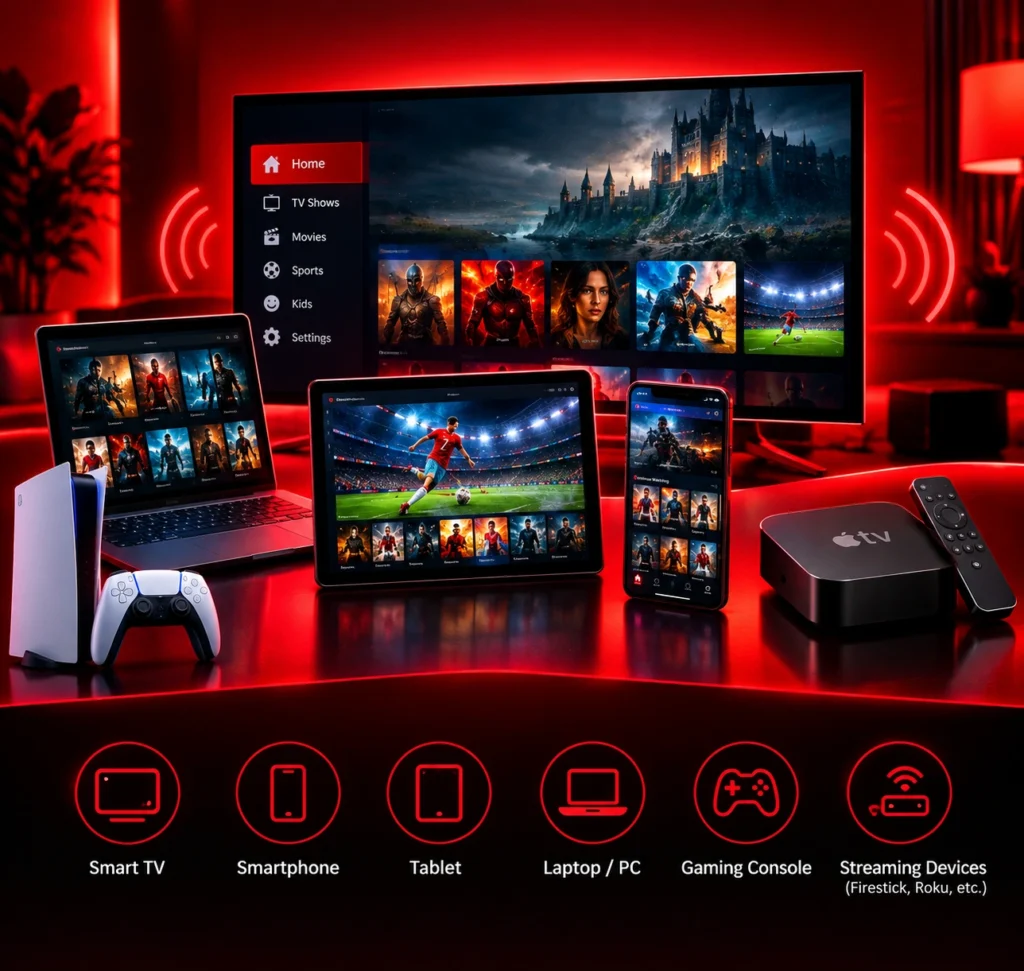
Your Smart TV is already the best screen in the house, so it makes sense to watch IPTV on it directly, with no extra box and no cables. The good news: almost every modern Smart TV from Samsung, LG, Sony, TCL, Hisense and other brands can run IPTV in a few minutes. The only thing that changes from brand to brand is which app you use and where you download it.
✓No contract✓30-day money-back✓Ready in under 10 min
This IPTV Smart TV guide shows you how to set up IPTV on your TV step by step, which apps work on each TV system, what internet speed you need for HD and 4K, and how to fix the most common problems.
Quick answer: install an IPTV player app from your TV’s app store, open it, and enter the login details from your IPTV subscription. With IPTVService4K you get 50,000+ live channels and 250,000+ movies and series on your Smart TV, with a 12-month plan for $60, and you can test everything first with a free 24-hour trial.
IPTV Smart TV Setup: What You Need
- A Smart TV with an app store, such as Samsung (Tizen), LG (webOS), or a TV running Android TV or Google TV.
- A stable internet connection. A wired Ethernet cable is best, but good Wi-Fi works too.
- An IPTV player app. The app is only the player; it does not include any channels on its own.
- An IPTV subscription, which gives you the channels, the movies and series, and the TV guide. Your login arrives by email within minutes after you choose a plan.
Best IPTV Smart TV Apps by Brand
Each TV brand uses its own operating system, so the app choice depends on your TV. Here is a quick overview:
| TV brand | System | Where to get the app | Popular IPTV players |
|---|---|---|---|
| Samsung | Tizen | Samsung Apps / Smart Hub | IBO Player, Smart IPTV, IPTV Smarters (where available) |
| LG | webOS | LG Content Store | IBO Player, Smart IPTV, SS IPTV |
| Sony, TCL, Hisense, Philips (Google TV / Android TV) | Android TV / Google TV | Google Play Store | IPTV Smarters Pro, TiviMate, XCIPTV |
| Roku TV, Vizio | Roku OS / SmartCast | Limited IPTV app support | Use a Firestick or Android TV box plugged into the TV |
App availability changes by country and by TV model, and some players ask for a small one-time activation fee after their own trial period. Our IPTV player guide compares the main apps in more detail.
IPTV on Samsung Smart TV: Step-by-Step Setup
Setting up IPTV on Samsung Smart TV models is easy once you know one thing: Samsung TVs run Tizen, and that matters more than people think. Tizen doesn’t let you sideload apps the way Android does, so you’re limited to what’s in Samsung’s own app store, and that store changes by country and by model year. In our experience, any Samsung from 2018 or newer handles IPTV well. Older models can work, but the app list is shorter and the apps feel slower.
- Press Home on your remote and open Apps.
- Tap the search icon and look for an IPTV player such as IBO Player or Smart IPTV. Install it.
- Open the app. Most Tizen players show a MAC address and a device key on the first screen. Take a photo of it with your phone, it saves time.
- Go to the app’s website on your phone or computer, enter the MAC address and key, and add your IPTVService4K login (Xtream Codes) or M3U link. Or just send the photo to our support team on WhatsApp and we’ll do it for you.
- Close the app completely and open it again. Channels, movies and the TV guide load within a minute or two.
IPTV Smarters on Samsung TV: Is It Available?
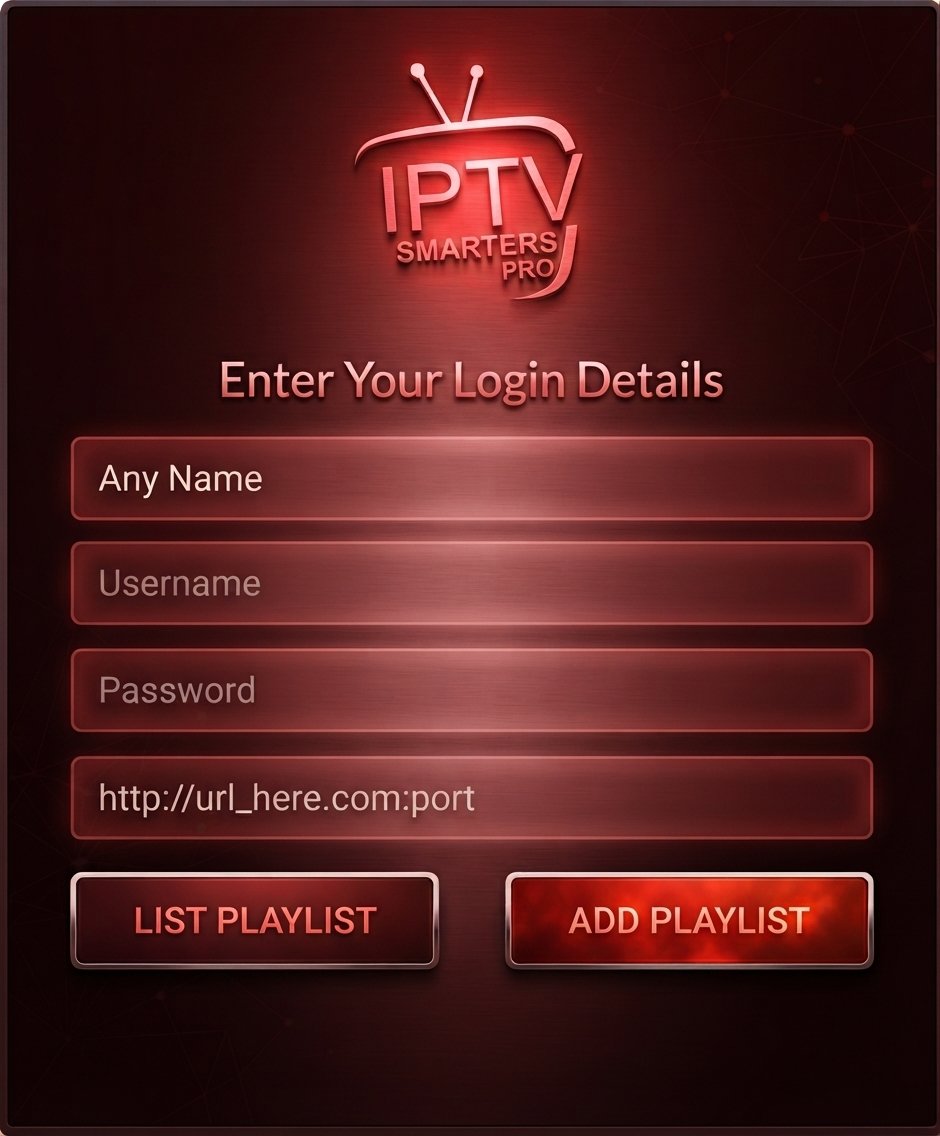
This is the question we get most from Samsung owners. Short answer: sometimes. IPTV Smarters on Samsung TV has come and gone from the Tizen store several times, and whether you see it depends on your region and model. If you search for it and it isn’t there, don’t waste an evening on workarounds. Pick one of the MAC-based players above, or plug a cheap Android-based stick into the HDMI port and install Smarters there in five minutes. Our IPTV Smarters Pro guide shows the full setup on those devices.
One thing to know about MAC-based apps: most of them give you a free week or so, then ask for a small one-time activation fee to the app developer. That fee is for the player, not for your channels, and it’s separate from your IPTV plan.
Samsung Settings That Make a Real Difference
- Use the Ethernet port. Even though most Samsung TVs only have a 100 Mbps port, that’s plenty for 4K IPTV, and a cable is far more stable than Wi-Fi during a big game.
- Check Picture Clarity settings (Picture, Expert Settings). If fast sports look a bit soap-opera smooth or show artifacts, try “Standard” or turn it off.
- Restart the TV properly once in a while: hold the power button until the logo appears. A normal off/on only puts it to sleep, so the app cache never clears.
IPTV on LG Smart TV: Step-by-Step Setup
For IPTV on LG Smart TV models, the logic is the same. LG uses webOS, which works a lot like Samsung’s system: no sideloading, apps only from the LG Content Store. The good news is that IPTV players on webOS are usually smooth, and the Magic Remote pointer makes typing logins much less painful than on other TVs.
- Press Home and open the LG Content Store (called Apps on newer webOS versions).
- Search for an IPTV player such as IBO Player or SS IPTV and install it.
- Open the app and write down the MAC address or connection code on the screen.
- Add your IPTVService4K login or playlist on the app’s website, or send us the code on WhatsApp and we’ll set it up for you.
- Close the app, reopen it, and start watching.
Best IPTV App for LG TV
There’s no single winner. For most people the best IPTV app for LG TV is a MAC-based player with a clean TV guide, because it’s easy to manage from your phone and you never type a long URL with the remote. If you want the exact same app on every screen in the house, a streaming stick in the LG’s HDMI port is the simpler route.
The LG “Quick Start+” Trap
Here’s a tip that solves a lot of support chats. LG TVs have a setting called Quick Start+ that makes the TV turn on faster by never fully shutting down. The side effect: if an IPTV app freezes or stops loading channels, turning the TV off and on doesn’t fix it. Go to Settings, General, Devices (or System), turn Quick Start+ off, then switch the TV off for a minute. Nine times out of ten the app comes back to normal. The same trick helps with any IPTV Smart TV app that suddenly stops loading.
Whichever brand you have, an IPTV Smart TV setup should never take more than ten minutes. If it does, message us and we’ll look at it with you.
How to Set Up IPTV on Android TV and Google TV
TVs from Sony, TCL, Hisense, Philips and many others run Android TV or Google TV. These are the easiest Smart TVs for IPTV because they use the Google Play Store.
- Open the Google Play Store on your TV.
- Search for IPTV Smarters Pro or another IPTV player and install it.
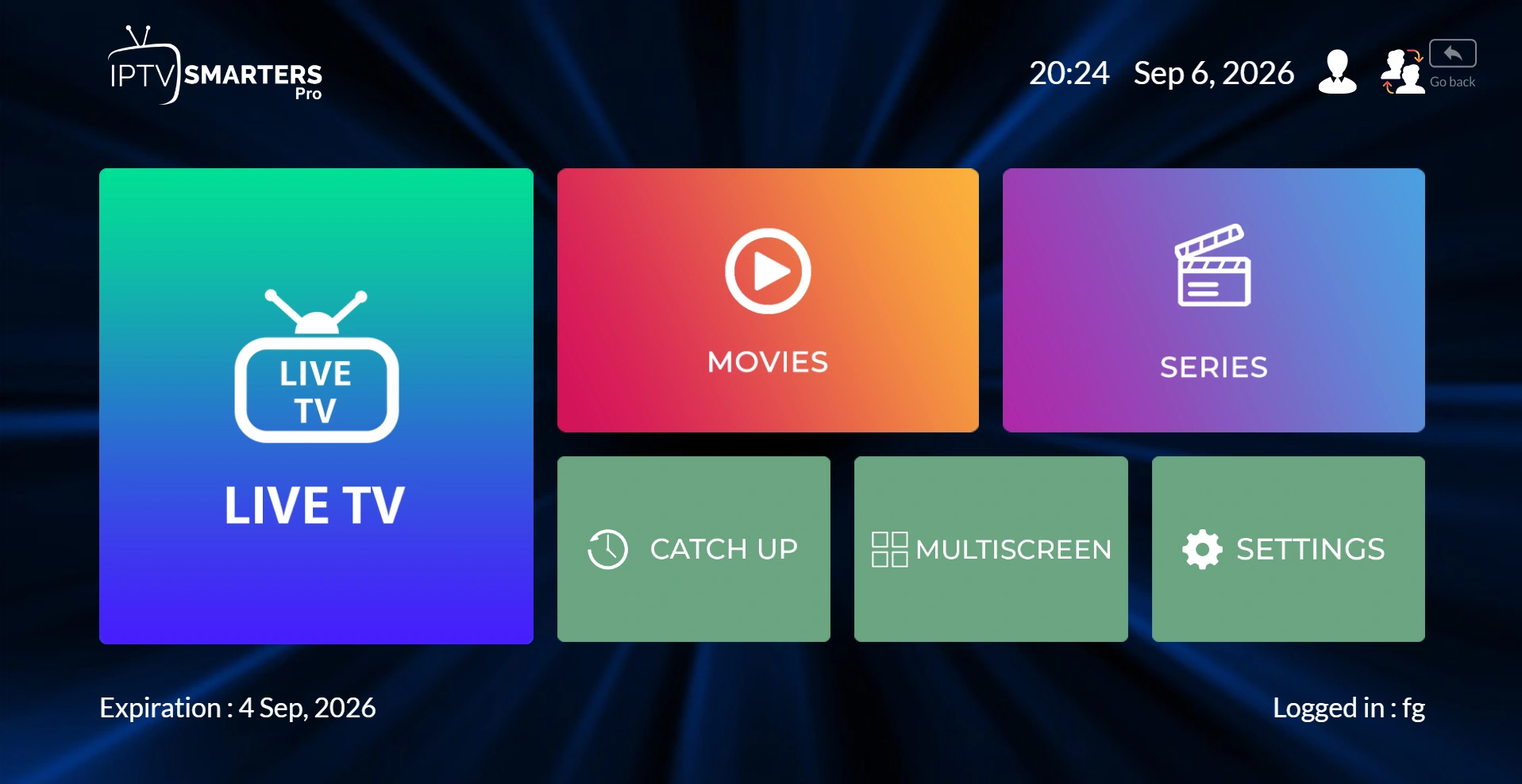
- Open the app and choose Login with Xtream Codes API.
- Enter the username, password and server URL from your IPTVService4K welcome email.
- Wait for the channels and the TV guide to load, then start watching.
Need more detail? Our IPTV Smarters Pro guide walks through every screen.
What About Roku and Vizio TVs?
Roku TVs and Vizio TVs have very limited support for IPTV player apps. The simplest and most reliable solution is to plug a streaming stick into a free HDMI port. An Amazon Firestick works very well; see our guide to the best IPTV for Firestick. An Android TV box is another good option.
Your Smart TV is ready, now add the channels. IPTVService4K works on Samsung, LG, Android TV and Google TV with 50,000+ live channels, live sports and 4K movies. Our team helps you set it up on WhatsApp.
Internet Speed for IPTV on a Smart TV
| Quality | Suggested speed per TV |
|---|---|
| SD | About 5 Mbps |
| HD / FHD | About 10 to 15 Mbps |
| 4K | 25 Mbps or more |
These are practical guidelines. If several people stream at the same time, add the speed needed for each screen. A wired connection is the single best fix for buffering on a Smart TV.
Common IPTV Smart TV Problems and Quick Fixes
- Channels buffer or freeze: use an Ethernet cable or move the router closer, close other apps, and restart the TV and the router.
- The app says the playlist is not loaded: check that the login or MAC address was entered exactly, then restart the app.
- The TV guide (EPG) is empty: wait a few minutes after the first login, then refresh the EPG in the app settings.
- The app is not in your TV’s store: try another player from the table above, or use a Firestick.
- Picture is not in 4K: pick a 4K channel, confirm your internet speed, and check that the TV supports 4K.
Still stuck? Message our support team on WhatsApp. We help customers with Smart TV setup every day, and you can follow our full IPTV installation guide for other devices.
Frequently Asked Questions
Can I watch IPTV on a Smart TV without a box?
Yes. Samsung, LG, Android TV and Google TV models can run IPTV player apps directly, so you do not need an extra box. Only Roku and Vizio TVs usually need a streaming stick.
What is the best IPTV app for a Samsung or LG TV?
IBO Player and Smart IPTV are among the most used players on Samsung and LG TVs. On Android TV and Google TV, IPTV Smarters Pro and TiviMate are popular choices.
Does IPTV on a Smart TV support 4K?
Yes, on 4K TVs with a fast enough connection. IPTVService4K offers HD, FHD and 4K streams on supported channels.
Can I use one subscription on several TVs?
Yes. Choose a plan for 2, 3 or 4 devices if you want to watch on several screens at the same time. See the plans for details.
How do I test IPTV on my Smart TV before paying?
Request our free 24-hour trial, install a player and check the channels and picture quality on your own TV.
Final Thoughts
Setting up IPTV on a Smart TV takes only a few minutes: install a player from your TV’s store, add your login, and start watching. The app is only half of the experience; the quality of your channels depends on your IPTV provider. Compare our IPTV plans or try IPTVService4K free for 24 hours and see the difference on your own TV.
Whatever TV you own, our IPTV service works on Samsung, LG, Google TV and every other major Smart TV.
Related Guides
- MAG box IPTV: portal setup and fixes
- IPTV for Android: best app and setup
- IPTV on Apple TV: best app and setup
- IPTV Installation Guide for Every Device
- Best IPTV Player Apps
- IPTV Smarters Pro Guide
- Best IPTV for Firestick
- Cheap IPTV Subscription: 12 Months for $60
- IPTV NFL: Watch Every Game Day
- Failed to Authorize IPTV Smarters: 9 Fixes
- IPTV for PC: Watch on Windows and Mac
- IPTV USA: Best IPTV Service for US Channels and Sports
- 4K IPTV: Watch Live TV in Ultra HD
- Legit IPTV Services: 9 Signs of a Reliable Provider
- How to Get IPTV in 2026: An Easy 6-Step Guide
- IPTV on Roku: 3 Easy Ways