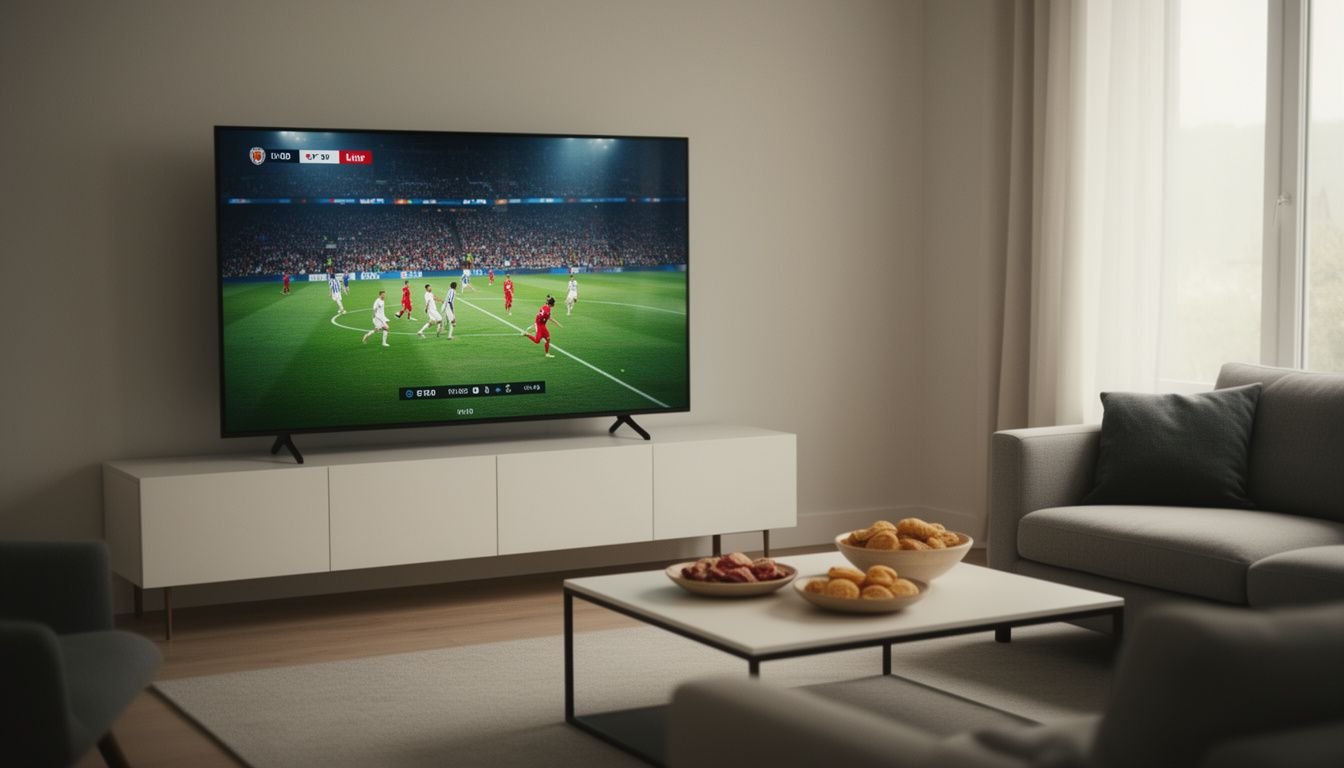
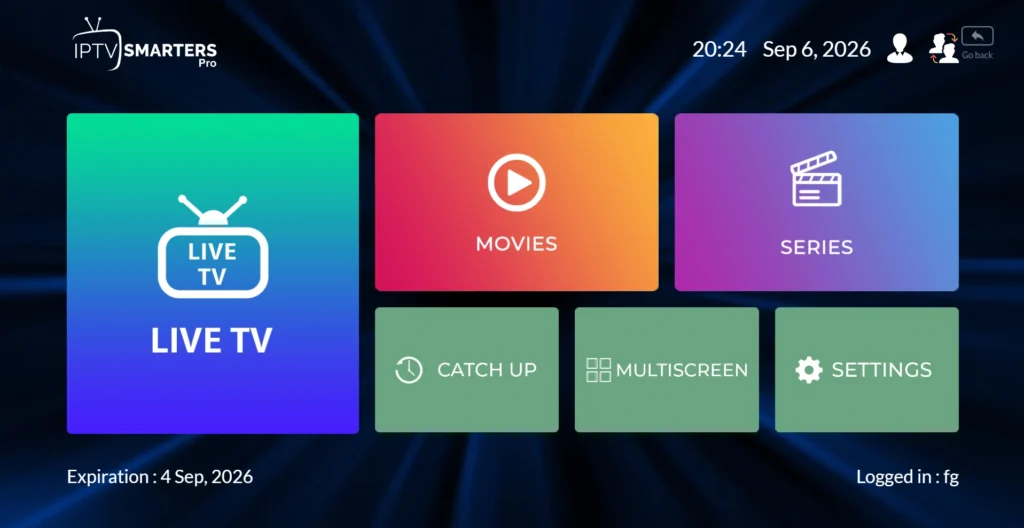
Roku is one of the most popular TV platforms in American homes, so it is no surprise that “IPTV on Roku” is one of the questions we get most. The honest answer is a little different from Firestick or Android TV: Roku is a closed system, and many of the IPTV player apps you know from other devices are not in the Roku Channel Store. The good news is that there are still simple, reliable ways to watch IPTV on a Roku TV, and we will walk you through each one.
✓No contract✓30-day money-back✓Ready in under 10 min
We run an IPTV service for viewers across the US, and we help Roku owners set this up every week. Below you will find the methods that actually work in 2026, which one we recommend for your setup, and the mistakes that cause most of the buffering we see.
Can You Watch IPTV on Roku?
Yes, but not always with a native app. The most reliable ways to watch IPTV on Roku are casting from an iPhone or Mac with AirPlay, mirroring from an Android phone or Windows PC, or plugging a low-cost streaming stick into your Roku TV’s HDMI port. All three let you use your normal IPTV subscription on the big screen.
Why IPTV on Roku Works Differently
On Firestick and Android TV you can install almost any IPTV player. Roku only lets you add apps from its official Channel Store, and it does not allow installing apps from outside it for everyday users. Player apps appear and disappear from the store over time, so a method that depends on one specific app can stop working overnight. That is why we always suggest a method that does not rely on a single Roku app.
Method 1: AirPlay From iPhone, iPad or Mac
If you use Apple devices, this is the easiest option. According to Roku’s own support page, compatible 4K Roku devices support Apple AirPlay from iPhones, iPads and Macs that support AirPlay 2.
- Install an IPTV player app on your iPhone or iPad and log in with your IPTVService4K details.
- Make sure the phone and the Roku are on the same Wi-Fi network.
- Start a channel, tap the AirPlay icon and choose your Roku.
Good for: Apple households that want a quick setup with no extra hardware.
Method 2: Screen Mirroring From Android or Windows
Roku also supports screen mirroring from many Android phones and Windows PCs. Open your IPTV app on the phone or computer, then use the phone’s “Cast” or “Smart View” option, or Windows’ “Connect to a wireless display”, and pick your Roku.
- Keep the phone plugged in, because mirroring drains the battery fast.
- Close other apps, so your phone’s screen stays on the stream.
- For PC users, our IPTV for PC guide covers the best player to use first.
Good for: occasional viewing, like a match or a movie night. For daily use, Method 3 is smoother.
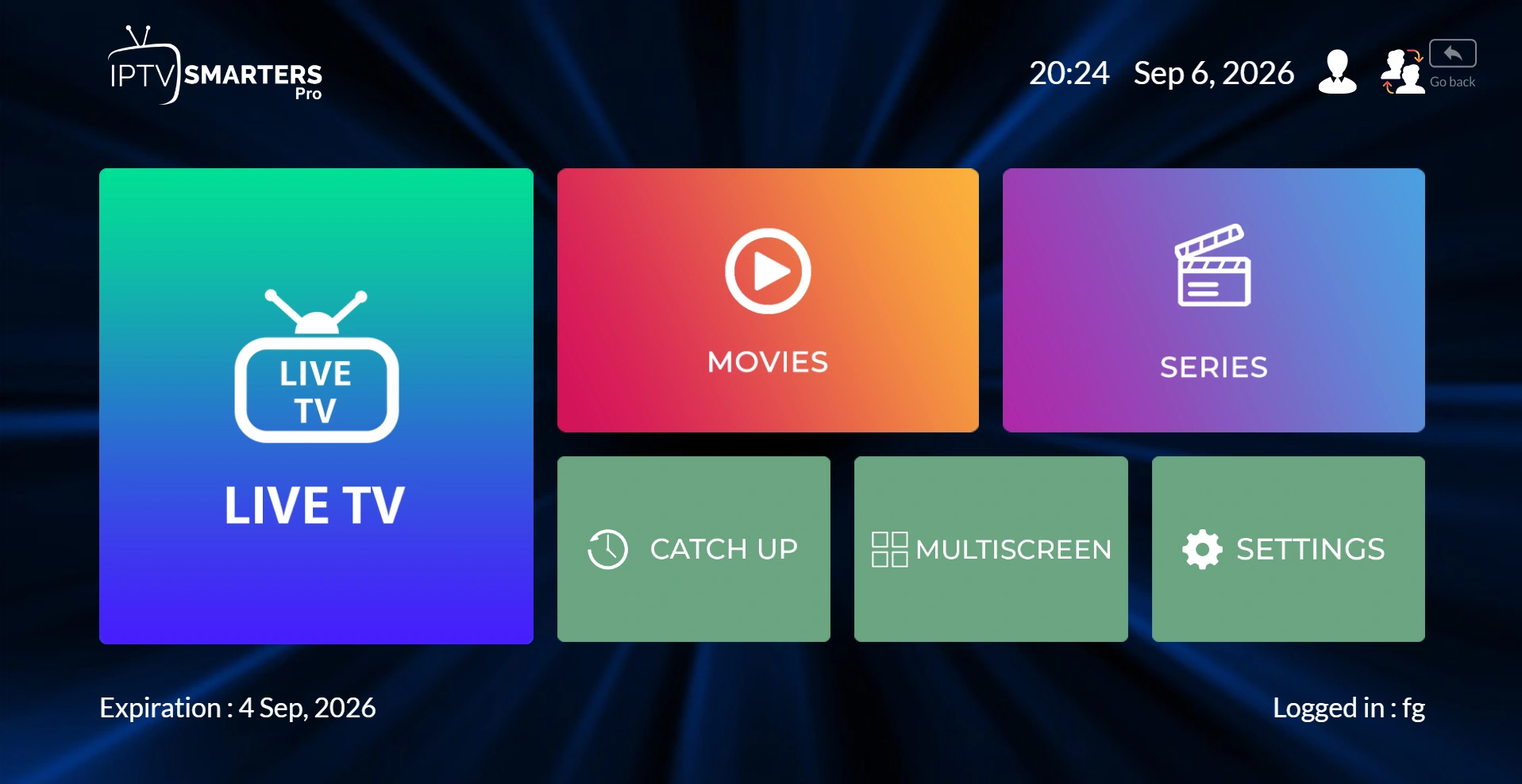
Method 3: Add a Streaming Stick to Your Roku TV (Our Pick)
A Roku TV is still a regular TV with HDMI ports. Plugging in an inexpensive Firestick or Android TV box gives you the full IPTV app experience with a remote, a TV guide and no phone in the middle. For IPTV on Roku TV, this is the setup we recommend to most owners, because it is the most stable and the easiest for the whole family to use.
- Plug the stick into a free HDMI port on your Roku TV and switch the input.
- Install an IPTV player app (our Firestick guide shows exactly how).
- Log in with your IPTVService4K details and open Live TV.
If your TV is a Samsung or LG rather than a Roku TV, you may not need a stick at all; see our IPTV on Smart TV guide.
Which IPTV on Roku Method Should You Choose?
| Your setup | Best method | Why |
|---|---|---|
| iPhone or Mac + 4K Roku | AirPlay | Quick, no extra hardware |
| Android phone or Windows PC | Screen mirroring | Fine for occasional viewing |
| Roku TV, daily viewing | Streaming stick in HDMI | Most stable, full remote and TV guide |
| Two people watching at once | Stick + phone, 2-device plan | Each screen gets its own stream |
Tips to Avoid Buffering With IPTV on Roku
- Use 5 GHz Wi-Fi or a cable. Mirroring is sensitive to weak Wi-Fi; a stick with an Ethernet adapter is even better.
- Keep devices close to the router when you mirror or AirPlay.
- Test during the hours you really watch. Our 24-hour free trial lets you check a live game before you pay.
What IPTV on Roku Costs
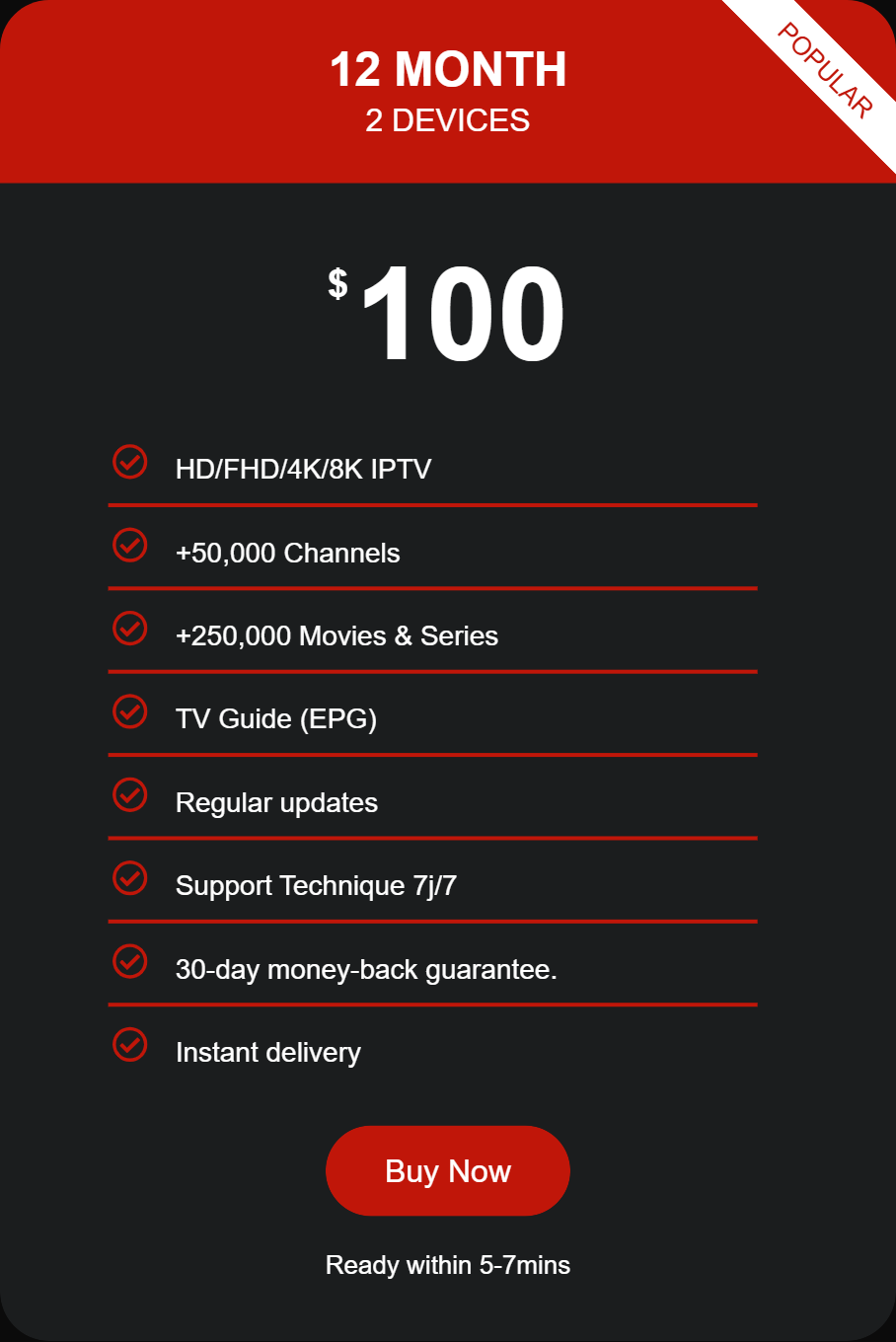
The IPTV subscription is the same whatever device you use. One device costs $15 for a month, $30 for 3 months, $45 for 6 months or $60 for a year. If you want the Roku TV and a phone to play at the same time, our 2-device plans start at $26 a month. Every plan comes with our 30-day money-back or server switch guarantee. Compare all plans here.
Frequently Asked Questions
Is there an IPTV app on the Roku Channel Store?
Some player apps appear in the Roku Channel Store from time to time, but availability changes and many popular IPTV players are not offered. That is why we recommend AirPlay, screen mirroring or a streaming stick, which work regardless of the store.
Can I use IPTV on a Roku TV without a phone?
Yes. Plug a Firestick or Android TV box into your Roku TV’s HDMI port, install an IPTV player and log in. You will use the stick’s remote, not your phone.
Does AirPlay work on every Roku?
No. Roku says AirPlay works on compatible 4K Roku devices with Apple devices that support AirPlay 2. Check your model in the Roku settings before relying on it.
Will IPTV on Roku buffer more than on Firestick?
Mirroring can add a little lag because the stream passes through your phone first. A stick plugged directly into the TV avoids that, which is why we recommend it for daily viewing.
Final Thoughts
Roku makes IPTV a little less direct than other devices, but it is far from impossible. Use AirPlay or mirroring for a quick start, and add a streaming stick to your Roku TV if you plan to watch every day. Start with the free trial, test it on your own TV, and message us if you get stuck.