
How to Install IPTV
Step by Step Setup Guide for Every Device
Setting up IPTV sounds technical, but the actual process takes only a few minutes once you know the steps. Whether you are using a Firestick, an Android box, a Smart TV, an iPhone, or a computer, the core idea is the same. You install a player app, enter your subscription details, and start streaming.
This guide walks through the exact installation steps for every major device, along with the apps you need and a few things to check before you start. If you have not signed up yet, you can try our 24 hour free trial first and test the setup before committing to a paid plan.
What You Need Before You Start
Before installing anything, make sure you have your login details ready. This usually means your username, password, and server URL, or a single M3U playlist link, sent to you after you choose a plan from our rate plans.
You also need a player app. This is a separate application that plays the channels, since IPTV service itself is just the content feed. Popular choices include IPTV Smarters Pro, TiviMate, and Smart IPTV, and we cover how to pick between them further down this guide.
Check your internet speed too. A stable connection of at least 15 to 20 Mbps is enough for smooth HD streaming, with a bit more recommended for 4K channels. Some users also run a VPN in the background during setup and daily use, mainly to keep their connection private and avoid occasional ISP throttling during peak hours. This is optional and not required to install or use the service.
How to Install IPTV on Firestick and Fire TV
Firestick is one of the most popular ways to watch IPTV, and our full Firestick setup guide covers this in more detail. Here is the short version.
First, go to Settings, then My Fire TV, then Developer Options, and turn on Apps from Unknown Sources. This allows your Firestick to install apps outside the official app store.
Next, search for and install the Downloader app from the Amazon Appstore. Open Downloader and use it to enter the direct APK link for your chosen player app, such as IPTV Smarters Pro or TiviMate. You can find the official Downloader app and setup instructions on the Downloader app website.
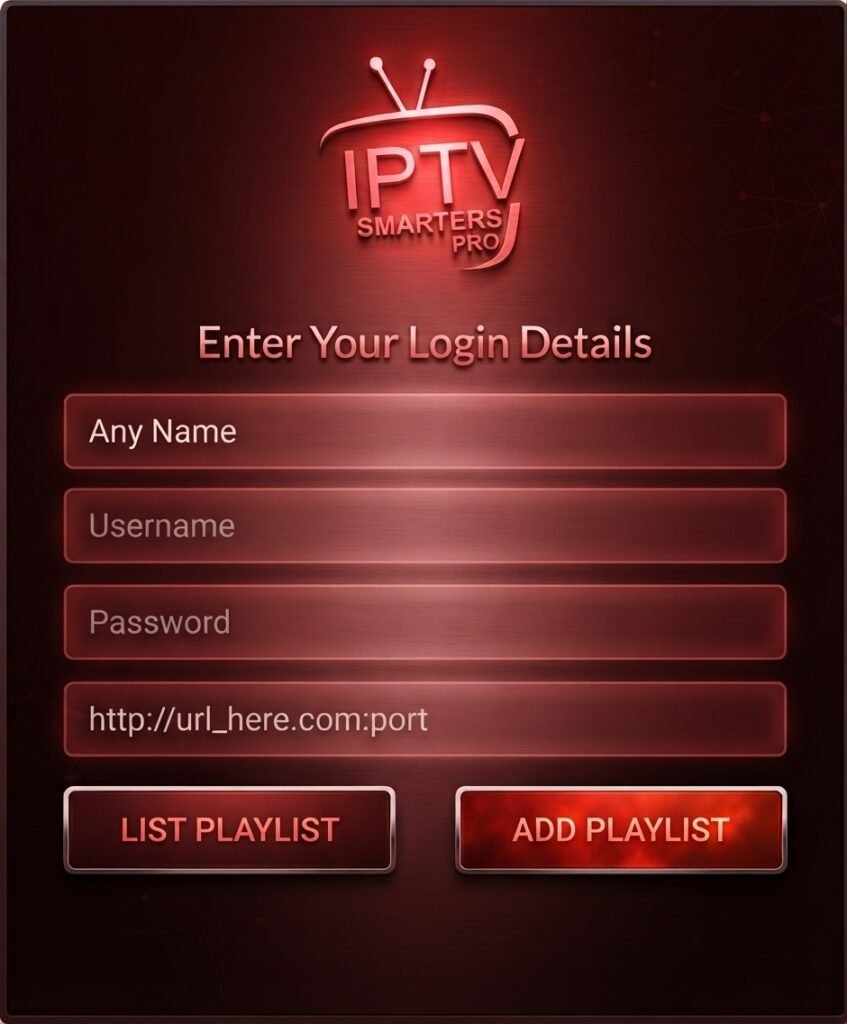
Once the player app installs, open it and enter your subscription details, either the M3U playlist link or your username, password, and server URL. Your channel list should load within a minute or two. If you plan to use a VPN, turn it on before opening the player app for the smoothest connection.
How to Install IPTV on Android Phones, Tablets and TV Boxes
Android devices are the simplest to set up because most player apps are available directly on the Google Play Store. Search for IPTV Smarters Pro or TiviMate, install it like any normal app, and open it.
Enter your login details the same way as on Firestick. Android TV boxes work identically to Android phones and tablets, since they run the same operating system underneath, so the same steps apply to Nvidia Shield and generic Android TV boxes as well.
If your app is not listed on the Play Store in your region, you can sideload it the same way as Firestick, using the Downloader app and the APK link provided with your subscription.
How to Install IPTV on Samsung and LG Smart TVs
Smart TVs need a slightly different approach since many do not support sideloaded APK files directly. Our detailed Smart TV app guide covers Samsung, LG, and other brands individually.
The most common method uses the Smart IPTV (SIPTV) app. Install it from your TV’s app store, then open it to find a MAC address displayed on screen. Write this address down.
On your phone or computer, visit the official Smart IPTV portal and enter your MAC address along with your M3U playlist link. After a short wait, restart the app on your TV and your channels will appear automatically.
Keep in mind that a major TV firmware update can sometimes remove the sideloaded app. If this happens, simply repeat the same setup steps, since your MAC address and playlist link stay the same.
How to Install IPTV on iPhone and iPad
For Apple devices, search the App Store for IPTV Smarters, and install the version labeled Smarters Player Lite. Open the app, choose the login method that matches your subscription, either Xtream Codes or M3U URL, and enter your details.
Your channels and on demand library should load within moments, giving you the same access as our full channels list on any other device. Apple TV owners can use the same Smarters Player Lite app from the tvOS App Store, following identical login steps.
How to Install IPTV on Windows and Mac
On a computer, the easiest option is downloading IPTV Smarters Pro directly from its official website, since it is not always available through app stores for desktop systems. Download the installer for your operating system, run it, and enter your login credentials once it opens.
Alternatively, VLC media player can play a single M3U playlist link directly, though it will not offer the same guide and on demand features as a dedicated IPTV app. This option works well as a quick way to confirm your subscription is active before installing a full player app.
Best IPTV Apps to Use for Installation
Choosing the right player app makes a real difference in your experience. Our IPTV Smarters Pro guide explains this app in more depth, but here is a quick comparison.
IPTV Smarters Pro is the most beginner friendly option, with a clean interface and support for most devices including Firestick, Android, iOS, and PC. TiviMate offers more customization and a more polished electronic program guide, though it works best on Android and Firestick specifically. Smart IPTV (SIPTV) is built specifically for Smart TVs and works well once the MAC address setup is complete, but it does not run on phones or Firestick.
If you are not sure which one to pick, IPTV Smarters Pro is the safest starting point since it works across almost every device covered in this guide.
Common Installation Problems and Fixes
If your channels do not load after installation, double check that you entered your username, password, and server URL exactly as they were sent to you, since a single typo will stop the app from connecting.
If the app installs but crashes on open, try restarting your device once before reinstalling. On Smart TVs, a firmware update can sometimes remove sideloaded apps, so you may need to repeat the Smart IPTV setup after a major TV software update.
If channels load but keep buffering, check your internet speed against the 15 to 20 Mbps recommendation above, and try turning off your VPN briefly to see if that improves playback.
If you are unsure whether your setup is working correctly, our 24 hour free trial is a low risk way to test the installation process before subscribing to a full plan.
Frequently Asked Questions About
IPTV Installation
Do I need a special box to install IPTV?
No. IPTV works on devices you likely already own, including Firestick, Android phones, Smart TVs, iPhones, and computers. No separate IPTV box is required.
What app should I install first?
For most beginners, IPTV Smarters Pro is the easiest starting point. Smart TV owners should install Smart IPTV instead, since it is built for that setup.
Why do I need the Downloader app?
Firestick and some Android devices do not allow direct downloads from outside their app stores. Downloader lets you enter a direct link and install the player app manually.
Do I need a VPN to use IPTV?
No, a VPN is not required. Some users choose to run one for privacy or to reduce occasional ISP throttling, but the service works fully without it.
Is installing IPTV difficult for someone with no technical experience?
Not really. Every step above uses simple menus and does not require any coding or advanced settings. Most people finish the full setup in under 10 minutes.
Can I install IPTV on more than one device?
Yes. Depending on your plan, you can usually install the app and log in on multiple devices, though only a limited number can stream at the same time.
What happens if my channels stop loading after a TV update?
This is common on Smart TVs after a firmware update. Simply reopen Smart IPTV, note the new MAC address if it changed, and repeat the playlist upload step.