
Your laptop or desktop is already a great TV screen. With the right app and a reliable subscription, IPTV for PC lets you watch live channels, sports, movies and series on Windows or Mac without a cable box, a Firestick or any extra hardware. You only need an internet connection, a free player app and your login details.
✓No contract✓30-day money-back✓Ready in under 10 min
This guide shows you three simple ways to watch IPTV on PC, the settings that stop buffering, which plan makes sense if you also watch on a TV, and how to test everything free for 24 hours before you pay.
Quick answer: To use IPTV for PC, install a player such as IPTV Smarters Pro (Windows and Mac) or VLC, then log in with the username, password and server URL (or M3U link) from your provider. IPTVService4K works on any PC with 50,000+ live channels in up to 4K, a 12-month plan for $60 and a free 24-hour trial.
What You Need to Watch IPTV for PC
Setting up IPTV for PC is simpler than most people expect. Before you start, check that you have these four things:
- A Windows or Mac computer: any laptop or desktop from the last few years is enough. Windows 10, Windows 11 and recent macOS versions all work well.
- A stable internet connection: around 15 Mbps for HD and 25 Mbps or more for 4K streams.
- A player app: IPTV Smarters Pro or VLC media player. Both are free. Our guide to the best IPTV player apps compares more options.
- An active IPTV subscription: your login details (username, password and server URL) or an M3U playlist link.
The app is only the player. The channels, movies and series come from your IPTV service, so the quality of your subscription decides how smooth your picture will be. If you are new to all of this, start with what IPTV is and how it works.
Method 1: IPTV Smarters Pro for Windows and Mac
IPTV Smarters Pro is the easiest way to get IPTV for Windows and Mac. It gives you a TV-style interface with live channels, an electronic program guide (EPG), movies, series and catch-up, all in one place.
- Download the IPTV Smarters Pro desktop app for Windows or macOS from the official IPTV Smarters website and install it like any other program.
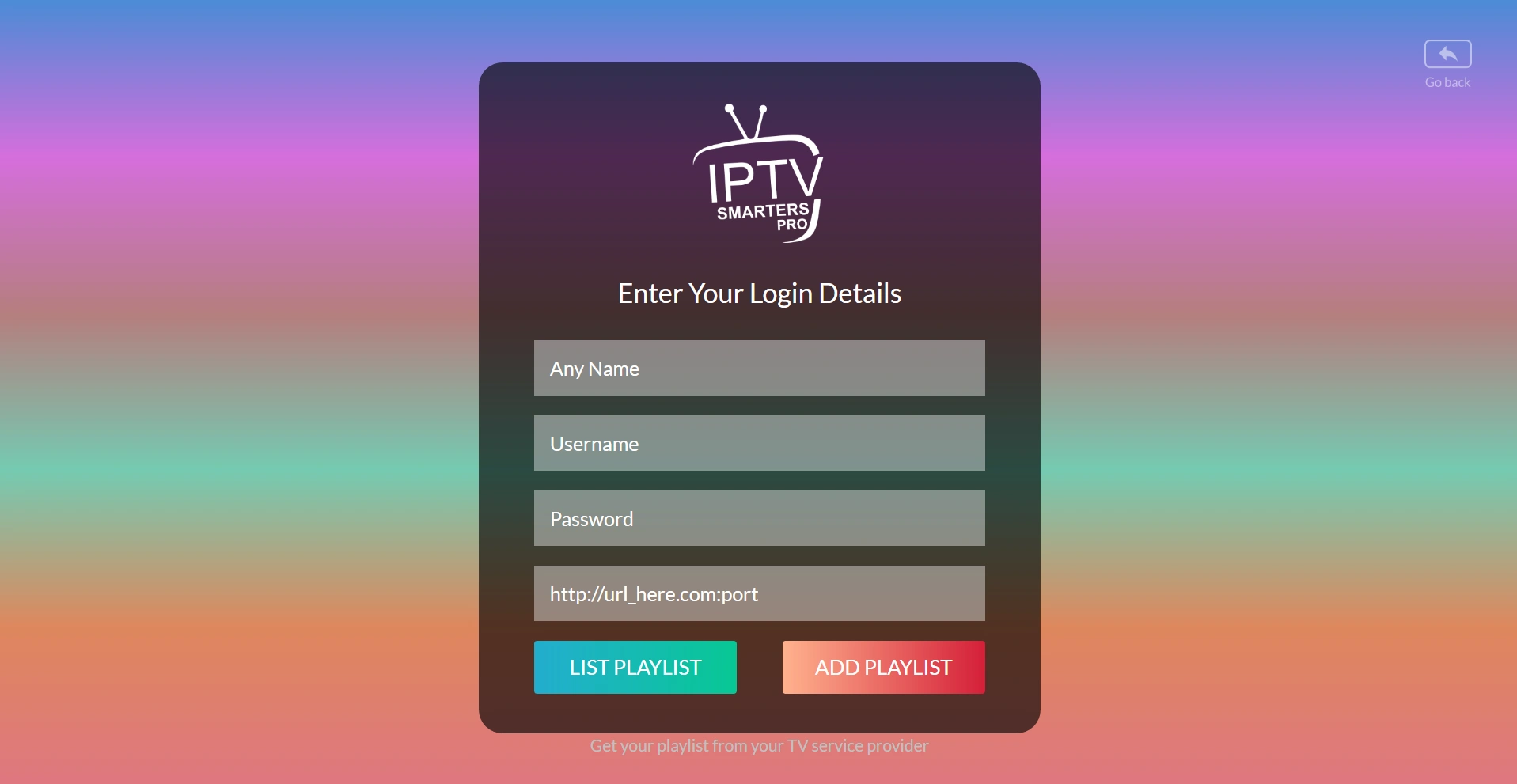
- Open the app and choose Login with Xtream Codes API.
- Enter any name for your profile, then your username, password and server URL exactly as they appear in your welcome message.
- Click Add User and wait a few seconds while the channels, movies and EPG load.
- Open Live TV, pick a category and start watching.
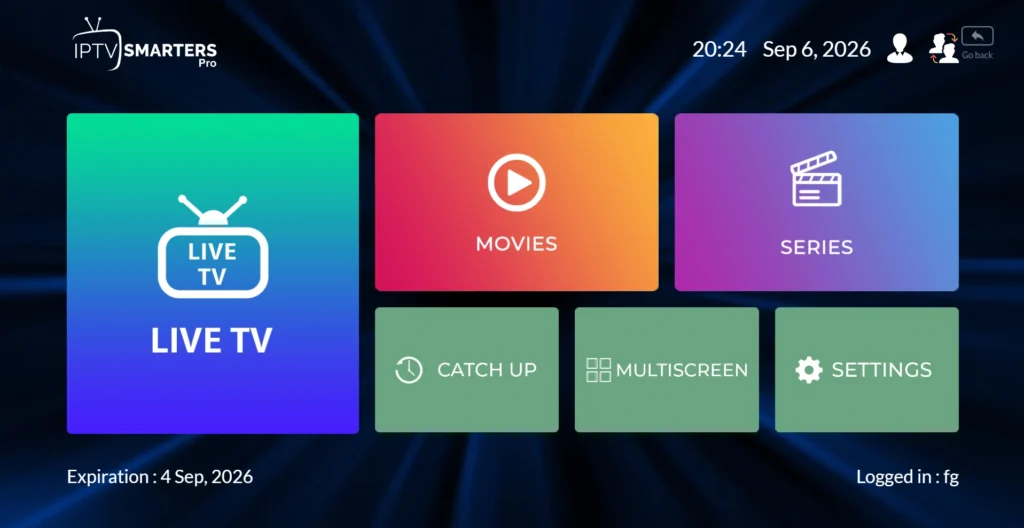
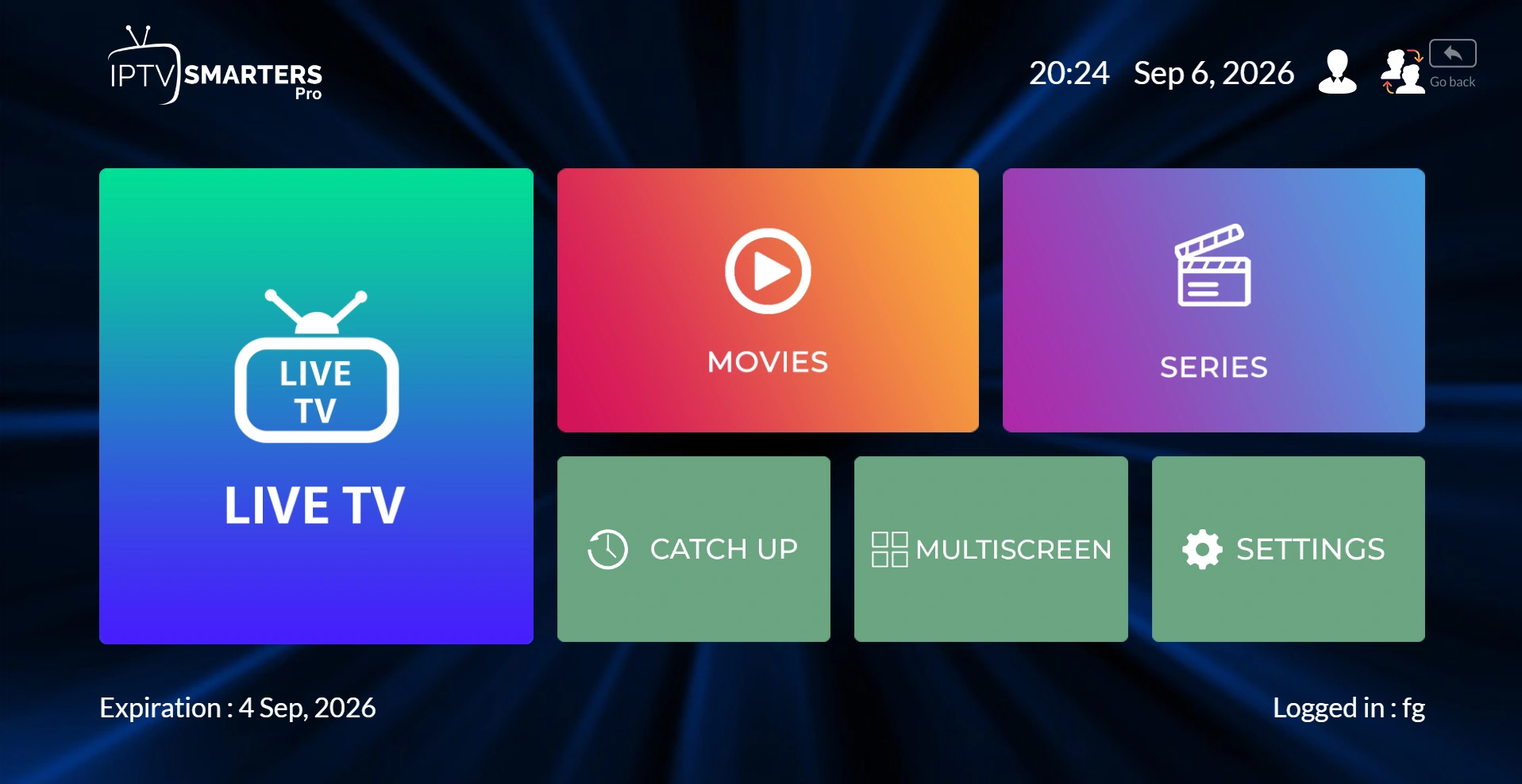
Once you are logged in, the home screen gives you quick access to Live TV, Movies, Series and Catch-up. On a large monitor this feels just like a premium cable box.
If the app shows an error at login, read our step-by-step fix for the failed to authorize IPTV Smarters message. For every feature of the app, see the full IPTV Smarters Pro guide.
Method 2: VLC Media Player With an M3U Link
VLC is a free, open-source player that runs on almost every computer. It does not have a full TV guide, but it is perfect for a quick test or for people who prefer a light, no-frills player.
- Download VLC from the official VideoLAN website and install it.
- Open VLC and go to Media > Open Network Stream (on Mac: File > Open Network).
- Paste the M3U playlist link from your provider and click Play.
- Press Ctrl + L (Cmd + L on Mac) to open the playlist and switch between channels.
Large playlists can take a minute to load in VLC. If you want a program guide, favorites and a cleaner layout, IPTV Smarters Pro is the better everyday choice.
Method 3: Connect Your Laptop to a TV
Want the big screen without buying a streaming stick? Plug your laptop into your TV with an HDMI cable, set the TV to the right HDMI input, and run IPTV Smarters Pro or VLC in full screen. Your PC becomes the box and your TV becomes the screen.
If you prefer an app directly on the TV, follow our guide to IPTV on Samsung, LG and Google TV or set up the best IPTV for Firestick. The same subscription works on all of them.
Best Settings for Smooth IPTV on Windows
Most buffering with IPTV for PC comes from the connection, not the service. These quick changes make a big difference:
- Use a wired connection: an Ethernet cable is far more stable than Wi-Fi, especially for live sports.
- Test your speed: run a check on Speedtest. Aim for 25 Mbps or more for 4K.
- Close heavy downloads: cloud backups, game updates and torrents compete with your stream.
- Turn on hardware acceleration: in the player settings, this lets your graphics card decode the video and keeps the picture smooth on older laptops.
- Keep the app updated: new versions fix playback bugs and improve EPG loading.
- Switch to a lower quality if your connection drops in the evening: many channels are available in HD and FHD as well as 4K.
Which IPTV Plan Is Best for PC Users?
If you only watch on your computer, a single-device plan is all you need. If you also want to watch on a TV, a phone or a Firestick at the same time, choose a plan with more connections so both screens can play together.
| Plan length | 1 device | 2 devices (PC + TV) |
|---|---|---|
| 1 month | $15 | $26 |
| 3 months | $30 | $55 |
| 6 months | $45 | $80 |
| 12 months | $60 | $100 |
Every plan includes 50,000+ live channels, 250,000+ movies and series, a TV guide, HD to 4K quality, instant delivery and a 30-day money-back guarantee. Plans for 3 and 4 devices are also available on the plans section.
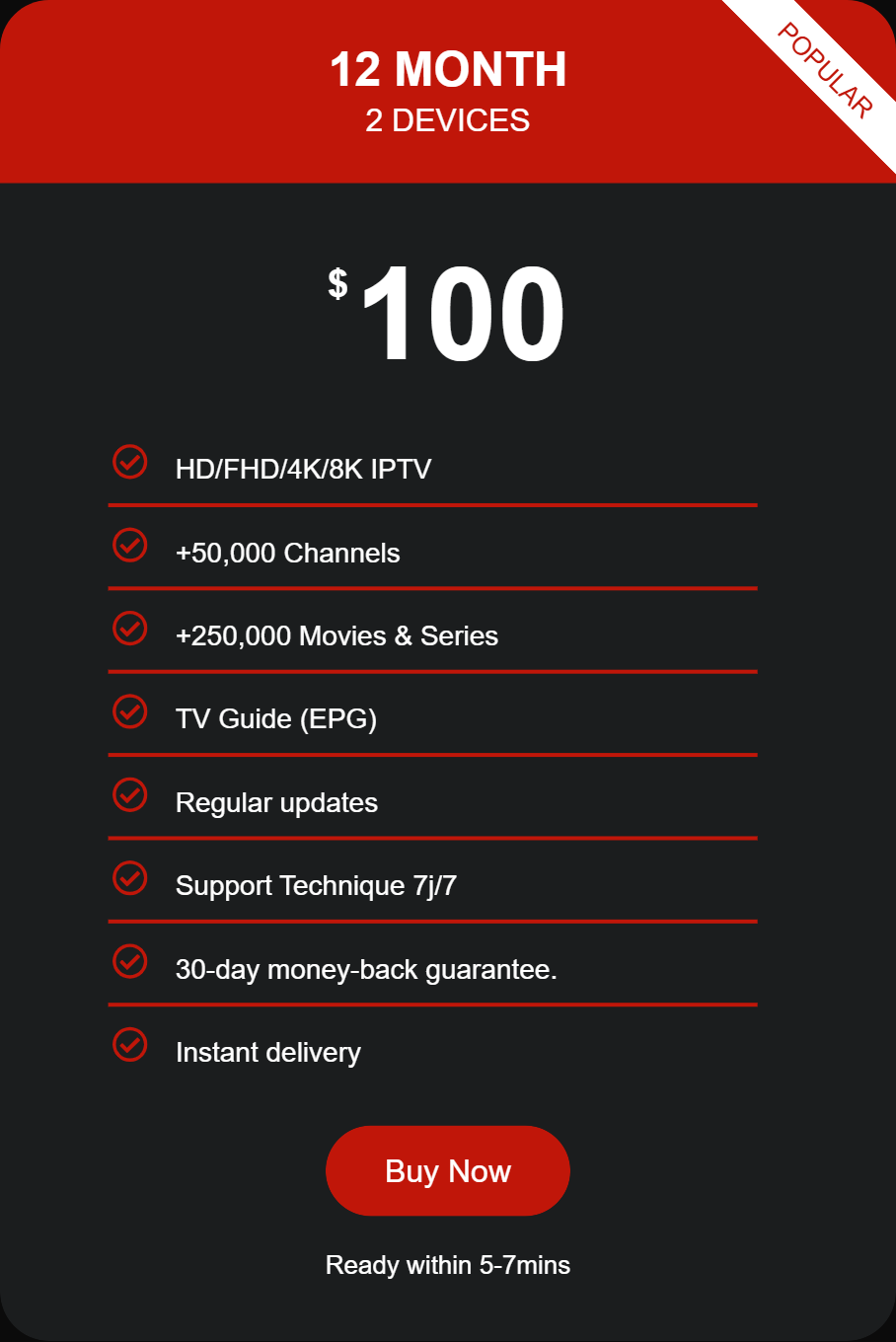
On a budget? Our cheap IPTV subscription guide explains how the 12-month plan for $60 gives you the lowest price per month.
Ready to watch IPTV on your computer? Pick a plan, receive your login in minutes and start streaming on Windows or Mac today.
Test IPTV on Your PC Free for 24 Hours
The best way to know if IPTV for PC works well on your computer is to try it. Our free trial gives you full access for 24 hours with no credit card needed. Install the app, log in with the trial details and check the channels, the picture quality and the TV guide on your own PC.
You can also browse the full channels list or read how our trial compares in the best IPTV free trial guide.
Common IPTV for PC Problems and Quick Fixes
The stream keeps buffering
Switch to Ethernet, close other downloads and lower the quality for a moment. If buffering only happens on one channel, try another channel in the same category.
The app cannot log in
Check the username, password and server URL for typos, extra spaces or a missing port. Our login error guide covers every cause.
The TV guide (EPG) is empty
Go to the app settings and refresh the EPG. The first load can take a couple of minutes on a large playlist.
There is picture but no sound
Change the audio track inside the player, or switch the video player engine in the IPTV Smarters settings.
Still stuck? Our team is online around the clock and will help you set up IPTV for PC step by step.
IPTV for PC: Frequently Asked Questions
Can I watch IPTV on a Windows PC for free?
The player apps are free, but the channels come from a paid subscription. You can test IPTVService4K free for 24 hours before you choose a plan.
What is the best app for IPTV for Windows?
IPTV Smarters Pro is the best all-round choice for most people because it has live TV, an EPG, movies and series in one app. VLC is a good backup for quick M3U playback.
Does IPTV work on Mac too?
Yes. IPTV Smarters Pro and VLC both have macOS versions, and the setup steps are the same as on Windows.
Can I watch on my PC and my TV at the same time?
Yes, with a 2-device plan or higher. Each device uses one connection, so both screens can play at once.
What internet speed do I need to watch IPTV on PC?
About 15 Mbps for HD and 25 Mbps or more for 4K. A wired connection gives the most stable result.
Final Thoughts
Getting IPTV for PC running takes about five minutes: install IPTV Smarters Pro or VLC, enter your login and start watching. With a wired connection and a reliable provider, your computer becomes a full live TV setup for sports, movies and series in up to 4K. Compare our IPTV plans or try IPTVService4K free for 24 hours.
Related Guides
- MAG box IPTV: portal setup and fixes
- IPTV for Android: best app and setup
- IPTV for iPhone: best iOS IPTV app and setup
- IPTV Smarters Pro Guide
- Best IPTV Player Apps
- Failed to Authorize IPTV Smarters: Fixes
- IPTV on Smart TV
- Best IPTV USA
- IPTV NBA: Watch Every Basketball Game Night
- 4K IPTV: Watch Live TV in Ultra HD
- How to Get IPTV in 2026: An Easy 6-Step Guide
- IPTV on Roku: 3 Easy Ways