Your iPhone is one of the best screens in the house for live TV. It is sharp, it is always with you, and with the right app it works perfectly as a remote control and a second TV. This guide shows you how to set up IPTV for iPhone in about five minutes, which iOS IPTV app to pick, and how to send the picture to your big TV when you want to.
✓No contract✓30-day money-back✓Ready in under 10 min
We run an IPTV service used by viewers across the US, and iPhone is one of the devices our customers ask about most. Everything below is based on the setups we walk people through every week on WhatsApp.
Can You Use IPTV for iPhone Without Jailbreaking?
Yes. You do not need to jailbreak, sideload or change any settings on your iPhone. IPTV on iPhone works through normal player apps from the App Store. The app is only the “player”. Your channels, movies and series come from your IPTV subscription, which you add to the app with a simple login.
That split is important: the app does not include any content on its own. If an app promises free channels, skip it. A good player plus a reliable subscription is what gives you smooth live TV.
What You Need Before You Start
Before you set up IPTV for iPhone, check these four things:
- An iPhone on a recent iOS version. Most current player apps need iOS 15 or newer.
- A stable connection. Around 15 Mbps is enough for HD and 25 Mbps or more for 4K. Wi-Fi is best; 5G works well too.
- Your IPTV login. A username, password and server URL (Xtream Codes) or an M3U link. You get these by email or WhatsApp after you order or start a free trial.
- A player app from the App Store (see the next section).
Best iOS IPTV App: What to Look For
The App Store has dozens of IPTV players, and names come and go quickly. Instead of chasing a top 10 list, remember that the best iOS IPTV app for you is simply the one that has these features:
- Xtream Codes login (username, password, URL). It loads channels faster and keeps your TV guide and categories organized.
- EPG / TV guide so you can see what is on now and next.
- Catch-up and movies/series sections if you want on-demand content, not only live TV.
- AirPlay and Picture-in-Picture so you can watch on your TV or keep a game running while you use other apps.
- Recent updates and good reviews from the last few months.
Long-standing options that tick these boxes include the IPTV Smarters player family and GSE Smart IPTV. If you already know Smarters from Firestick or Android, our IPTV Smarters Pro guide works the same way on iOS. For a wider comparison, see our guide to the best IPTV player apps. Not sure which one to install today? Message us and we will tell you the app our iPhone customers are using right now.
How to Set Up IPTV on iPhone in 5 Steps
Here is the exact IPTV iPhone setup we use with our customers. It works with almost every player app.
- Get your login. Choose a plan or start the 24-hour trial. Your username, password and server URL arrive in under 10 minutes.
- Install a player app from the App Store and open it.
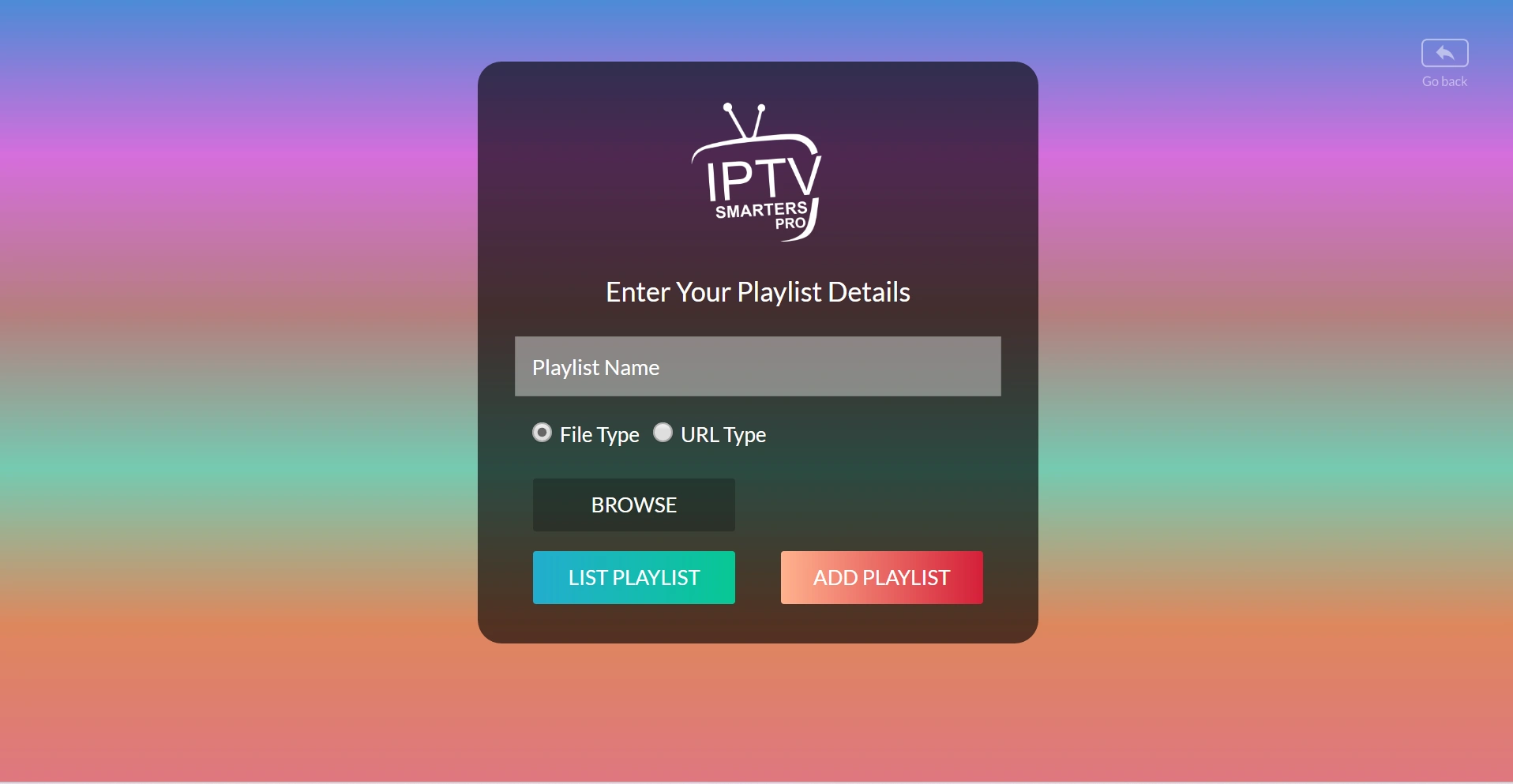
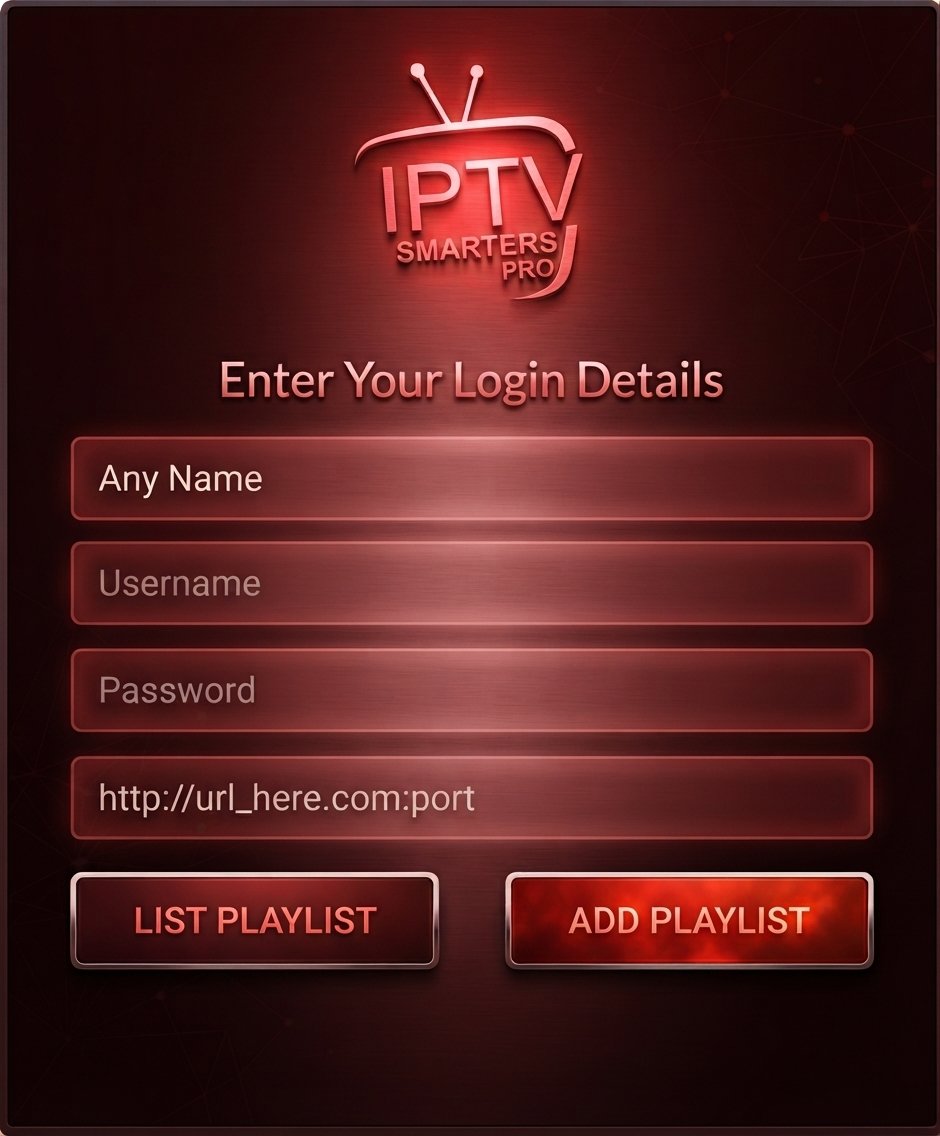
- Choose “Login with Xtream Codes API” (the name can vary slightly by app).
- Enter your details exactly as sent: any name you like for the playlist, then username, password and URL. Watch out for extra spaces and capital letters.
- Tap “Add User” or “Login”, wait for channels and the TV guide to load, and start watching.
If the app says your login failed, the cause is almost always a typo or an expired trial. Our guide to fixing failed to authorize errors covers every fix in two minutes.
Watch IPTV From Your iPhone on the Big TV
IPTV for iPhone is not limited to the small screen. Your iPhone can also send the picture to your TV. If you have an Apple TV, a recent smart TV with AirPlay, or a Roku with AirPlay support, open the stream, tap the AirPlay icon and pick your TV. Apple explains each step in its official AirPlay guide. It is perfect for a quick match or a movie night.
For daily viewing on the TV, a dedicated device is more stable than AirPlay because your phone stays free and the stream does not depend on the phone’s Wi-Fi. Our IPTV on Roku guide and Firestick guide show the options.
iPhone, iPad or Mac: Which Works Best?
| Device | Best for | Notes |
|---|---|---|
| iPhone | Watching on the go, quick checks | Picture-in-Picture keeps the stream running |
| iPad | Bigger screen in bed or the kitchen | Same apps and login as iPhone |
| Mac | Desk viewing, second screen | Use a desktop player; see our IPTV for PC guide |
One subscription covers all of them. With a 1-device plan you can switch between devices; with a 2-device plan you can watch on two screens at the same time.
Fix Common IPTV iPhone Problems
Most IPTV iPhone issues come down to the connection or one setting in the app. Try these quick fixes first:
- Buffering: move closer to the router or switch to 5 GHz Wi-Fi, close background apps, and lower the stream quality in the app if your connection is weak.
- No TV guide: refresh the EPG in the app settings. It can take a minute to load the first time.
- No sound on some channels: change the player (most apps let you switch between a native and an advanced player in settings).
- Stream stops when you lock the phone: turn on Picture-in-Picture or background audio in the app, if available.
What IPTV for iPhone Costs
There is no extra fee for iPhone. You pay for the subscription, and the same login works on your iPhone, iPad, TV or computer.
| Plan length | 1 device | 2 devices |
|---|---|---|
| 1 month | $15 | $26 |
| 3 months | $30 | $55 |
| 6 months | $45 | $80 |
| 12 months | $60 | $100 |
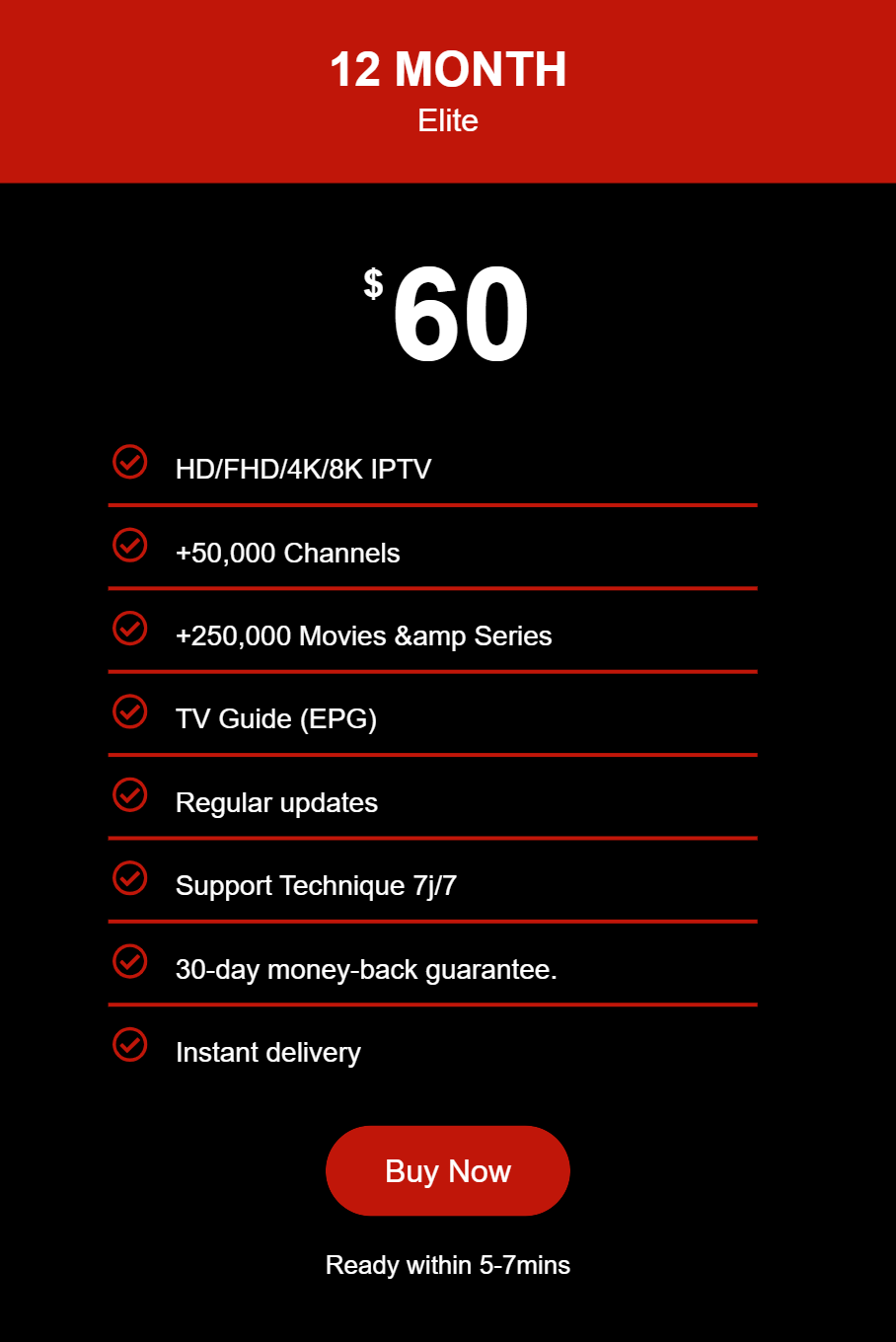
Every plan includes 50,000+ live channels, movies and series in HD and 4K, plus a 30-day money-back guarantee. You can check the full channel list before you buy, or compare all options on our IPTV price page.
Frequently Asked Questions
What is the best iOS IPTV app?
The best iOS IPTV app is one with Xtream Codes login, a TV guide, AirPlay and regular updates. Smarters-style players and GSE Smart IPTV are popular choices for IPTV for iPhone, and we can recommend the current favorite on WhatsApp.
Is there an official IPTV app on the App Store?
There are many IPTV player apps on the App Store. They are players only, so you add your own subscription login to watch.
Can I use the same IPTV login on iPhone and my TV?
Yes. On a 1-device plan you can use it on one device at a time. If you want to watch on your iPhone and your TV at the same moment, choose a 2-device plan.
Does IPTV on iPhone use a lot of mobile data?
HD uses roughly 1.5 to 3 GB per hour and 4K can use 7 GB or more. Use Wi-Fi when you can, or lower the quality when you are on mobile data.
Can I try IPTV on my iPhone before paying?
Yes. Our 24-hour free trial works on iPhone, and setup takes about five minutes.
Final Thoughts
Setting up IPTV for iPhone is simple: one player app from the App Store, one login, and five minutes. Pick an app with Xtream Codes, EPG and AirPlay, add your details, and you have live TV, sports and movies in your pocket and on your TV. If anything does not work, our team answers on WhatsApp and will get you watching fast.