18+ notice: this guide is for adults managing an IPTV subscription in their own home. It explains how the adult PIN works so you can keep the adult category private and away from children.
The IPTV adult password question lands in our support chat almost every day. Someone opens the adult category for the first time, the app asks for a PIN, and nobody in the house remembers setting one. Other times it is the opposite: a parent wants to lock the adult section before the kids get hold of the remote.
✓No contract✓30-day money-back✓Ready in under 10 min
Both cases come down to the same feature: parental control. In this guide we explain what the IPTV adult PIN actually is, where to find it in the most common apps, how to change or reset it, and how to set up a safe household without losing access yourself. We run an IPTV service, so this is based on the questions our customers really ask, not theory.
What Is the IPTV Adult Password?
The adult password is a short PIN, usually four digits, that locks the adult category inside your IPTV player. It is not your account password and it is not the username and password your provider sends you to log in. Those details connect the app to the service. The adult PIN only decides who can open the locked categories once you are inside.
That difference matters. If you forget your login, you need your provider. If you forget the adult PIN, you can usually fix it yourself inside the app, as long as you can get into its settings.
Where the PIN lives
The PIN is stored by the player app on your device, not by us on the server. That is why the same subscription can have one PIN on your living room TV and a different one on your phone. Each app keeps its own parental control settings.
Default IPTV Adult PIN: Is It Always 0000?
Not always, but 0000 is the most common starting point. On MAG boxes and Ministra-based players, the default parental control password is 0000 according to the official Infomir documentation. Many other players do not ship with a default at all. Instead, they ask you to create a PIN the first time you open parental control.
If an app asks for a PIN you never created, try 0000 first, then 1234. If neither works, someone in the house probably set one before you, and the reset steps below are the way forward.
How to Set or Change the Adult PIN in Popular IPTV Apps
Menus move around between versions, but the path is very similar in most players. Here is what our customers usually see.
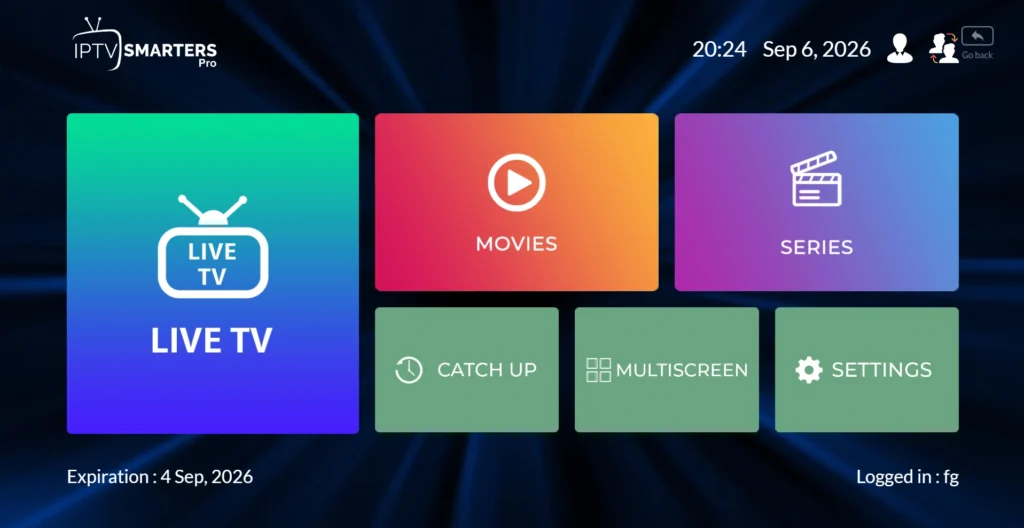
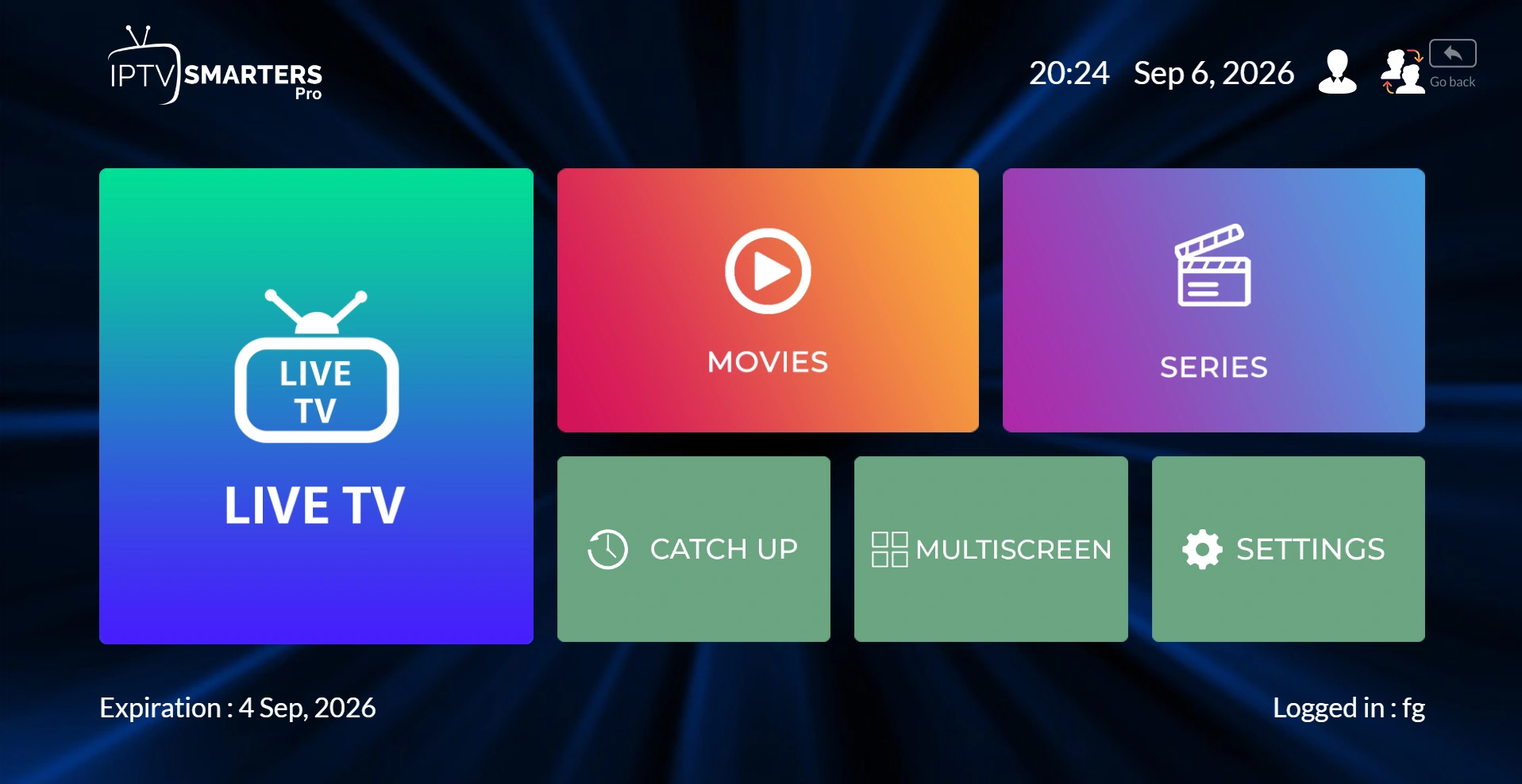
IPTV Smarters Pro
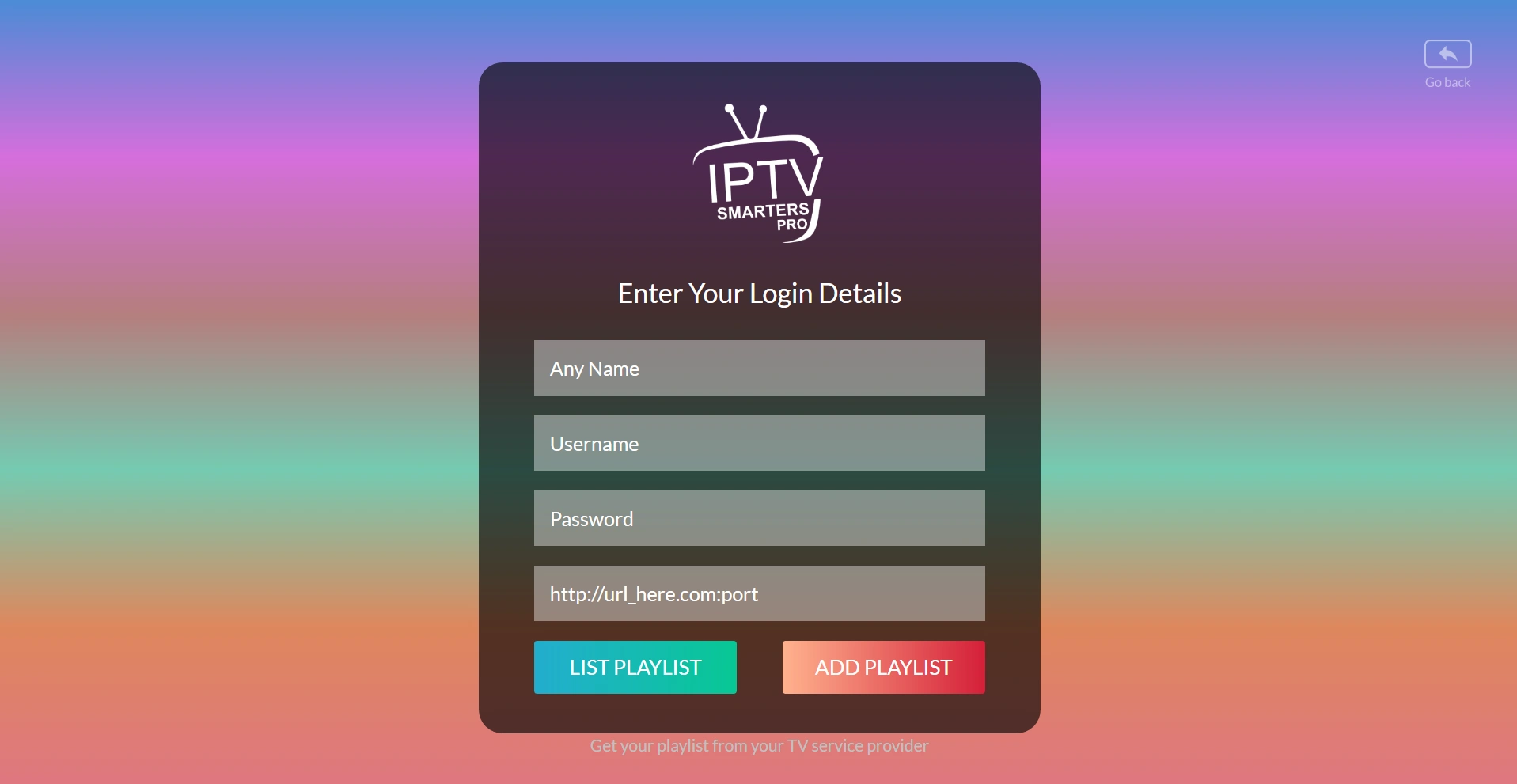
- Open the app and log in with the details your provider sent you.
- Go to Settings and choose Parental Control.
- Create a PIN, or enter the current one to change it.
- Select the categories you want to lock, including the adult section, and save.
If you are new to the app, our IPTV Smarters Pro setup guide walks through the login screen first.
TiviMate and similar players
- Open Settings and look for Parental control.
- Set a PIN when the app asks for one.
- Choose which channel groups are locked or hidden, and confirm.
Not sure which player suits your device? Our comparison of the best IPTV player apps covers the options.
MAG boxes
- Open Settings and choose Parent Control.
- Select Password, enter the old one (0000 by default), then type and confirm the new PIN.
Forgot Your IPTV Adult Password? How to Reset It
This is the part that worries people most, and it is usually simpler than they expect. Because the PIN lives in the app, resetting it means resetting the app’s parental settings, not your subscription.
- Try the usual defaults. 0000 and 1234 solve a surprising number of cases.
- Look for a reset option. Some players offer “forgot PIN” or a reset button inside parental control.
- Clear the app data. On Android TV, Firestick and Android phones you can clear the app’s data or reinstall it. This wipes the local PIN, but you will also need to log in again, so keep your login details handy.
- Ask your provider for your login details. If you reinstall and lost the login email, we can resend your details. We cannot see or change the PIN on your device, but we can get you logged back in.
One honest warning: if a child in the house knows how to clear app data, a PIN on its own is not enough. Combine it with the steps in the next section.
How to Keep the Adult Category Safe at Home
- Hide, do not just lock. Many players let you hide the adult group completely, so it does not even appear in the list.
- Use a PIN that is not a birthday. Kids guess dates first.
- Lock the device too. Smart TVs and Android devices have their own parental controls for installing or opening apps.
- Use a separate profile or device. On a 2-device plan, one screen can stay family-friendly while the other is for adults only.
If you want to understand how adult content is organized on our service, see our page on IPTV with adult content, or read our guide to the best adult IPTV options.
Try It Before You Pay
The easiest way to check how the adult PIN works on your own TV is to test it. Our 24-hour free trial lets you install the app, set your PIN and see the categories before you commit. When you are happy, one device costs $15 for a month, $30 for 3 months, $45 for 6 months or $60 for a full year. You can compare all plans here.
Frequently Asked Questions
What is the default IPTV adult password?
On MAG boxes and Ministra players the default is 0000. Many other apps have no default and ask you to create a PIN the first time you open parental control.
Is the adult PIN the same as my IPTV login password?
No. Your login connects the app to your provider. The adult PIN only locks categories inside the app on that device.
Can my IPTV provider reset my adult PIN?
Usually not, because the PIN is saved in the app on your device. We can resend your login details if you reinstall the app, which also clears the old PIN.
Can I hide adult channels completely?
Yes, on most players you can hide the adult group so it does not appear in the channel list at all, and protect the settings with the same PIN.
Final Thoughts
The IPTV adult password is a small setting that does a big job. Set your own PIN on day one, hide the adult group if there are children at home, and keep your login details somewhere safe so a reset is never a problem. If you have questions, our support team is happy to help you set it up.