You open the app, enter your details, press Add User, and instead of your channels you see the message “Failed to authorize”. If you are dealing with the failed to authorize IPTV Smarters error, you are not alone. It is one of the most common problems IPTV users run into, and in most cases it takes only a few minutes to fix.
✓No contract✓30-day money-back✓Ready in under 10 min
This guide explains what the error really means, walks you through 9 fixes in the order that solves the problem fastest, and shows you how to tell when the issue is not your device at all but your IPTV provider.
Quick answer: “Failed to authorize” means IPTV Smarters could not verify your login with your provider’s server. The usual causes are a typo in the username, password or server URL, an expired subscription, too many devices connected at once, or a provider server that is down. If your provider keeps failing, IPTVService4K gives you a stable login, 50,000+ channels and a free 24-hour trial to test it.
What Does “Failed to Authorize” Mean in IPTV Smarters?
IPTV Smarters is only a player. It does not include any channels. When you log in, the app sends your username, password and server URL to your IPTV provider’s server and asks for permission to load your channel list. “Failed to authorize” simply means the server said no, or did not answer at all.
That is good news: the app itself is almost never broken. The cause is nearly always one of three things: the details you entered, the status of your subscription, or the provider’s server.
How to Fix Failed to Authorize IPTV Smarters: 9 Solutions
Work through these fixes in order. Most users solve the failed to authorize IPTV Smarters problem with one of the first four.
1. Check your username and password
Login details are case-sensitive, and a single extra space breaks them. If you copied them from an email or WhatsApp message, a hidden space is often added at the start or end. Type them by hand, slowly, and check capital letters and similar characters such as 0 and O or l and 1.
2. Check the server URL and port
The server URL must be entered exactly as your provider sent it, usually in the form http://domain.com:8080. Common mistakes are typing https instead of http, forgetting the port number after the colon, or adding an extra slash or path at the end. When in doubt, copy the URL again from your welcome email and remove any spaces.
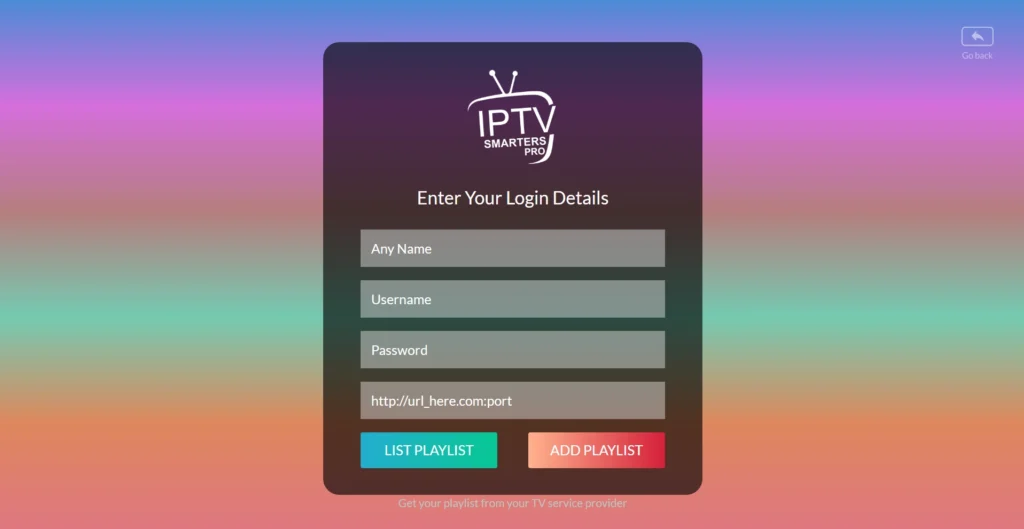
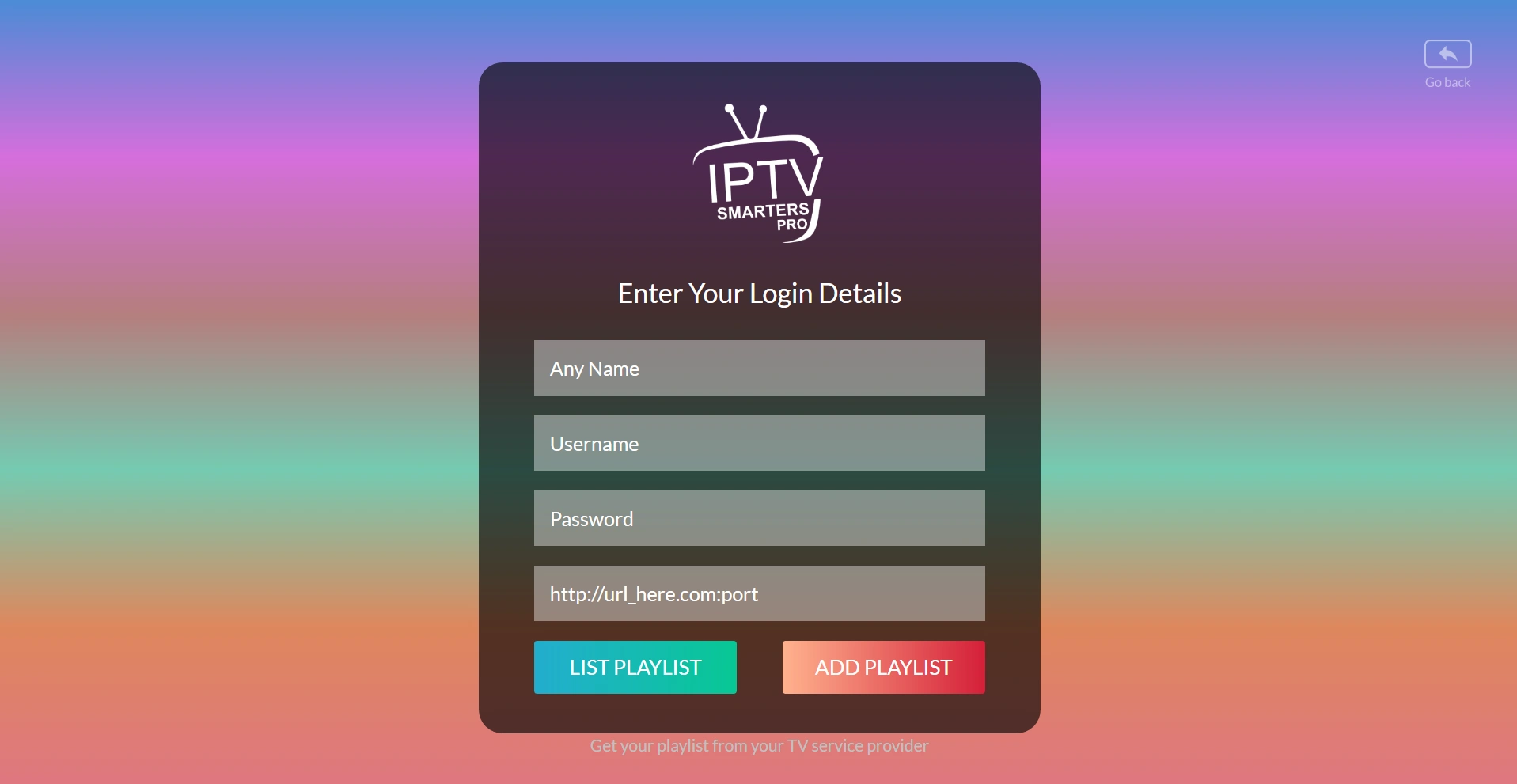
What does “http://url_here.com:port” mean in IPTV Smarters?
That text is just a placeholder, an example of where your server address goes. A lot of people leave it there or type over half of it, and the login fails every time. Delete it completely and paste the real server URL your provider sent, including the port (for example http://yourserver.com:8080). If you never got a server URL, ask your provider for it: the app can’t work without it.
Why does IPTV Smarters say “invalid details” or “invalid server”?
“Invalid details” almost always means a typo in the username or password, often a capital letter or a space at the end that you can’t see on the TV screen. “Invalid server” means the URL is wrong or the server didn’t answer. Retype the login slowly, or copy and paste it from your phone if the app allows it.
3. Make sure your subscription is active
If your plan has expired, or has not been activated yet after payment, the server will refuse the login. Check the expiry date your provider gave you, and if you just paid, wait a few minutes for activation before trying again.
4. Check how many devices are connected
Every plan allows a set number of connections at the same time. If the same login is already open on a Firestick, a phone and a TV, the next device may be refused. Close the app on the other devices, wait a minute, then try again, or move to a plan with more devices.
5. Check whether the provider’s server is down
If your details were working yesterday and nothing changed, the problem may be on the provider’s side: maintenance, an overloaded server or a server that changed address. Wait 15 to 30 minutes and try again, then contact your provider if it continues.
6. Test your internet connection
Restart your router and your device. Then try the same login on a different network, for example your phone’s mobile data. If it works there, your home network or internet provider may be blocking the connection to the IPTV server.
7. Use the right login type
IPTV Smarters offers several ways to log in. If your provider gave you a username, password and URL, choose Login with Xtream Codes API. If they gave you a single long link, use the M3U playlist option instead. Entering Xtream details into the M3U option, or the other way round, causes authorization errors.
8. Update the app, clear its cache and check the date
An outdated version of the app can fail to connect to newer servers. Update IPTV Smarters, clear its cache in your device settings, and make sure your device shows the correct date and time, because a wrong clock can break secure connections. If nothing helps, uninstall and reinstall the app.
9. Contact your provider’s support
If all of the above checks out and you still get failed to authorize in IPTV Smarters, ask your provider to confirm that your account is active and to resend your details. A good provider answers quickly and can see the problem on their side within minutes.
“Authorization Failed for Above Host” and “Account Invalid or Expired”: What These Messages Mean
IPTV Smarters does not always say “failed to authorize”. Depending on the version and the device, you might see a slightly different message. They look different, but they point to the same few causes, and you can usually tell which one you are dealing with from the wording alone.
“Authorization failed for above host”
The app reached a server, but the server refused the login. In most cases the problem is the URL itself. Look for small things: http instead of https (or the other way around), a missing port such as :80 or :8080, a space at the end, or an extra slash. Copy the URL exactly as your provider sent it. Typing it with a TV remote is where most typos come from, so if you can, paste it from your phone or use the app’s QR or link option.
“Your account is invalid or has expired”
This one usually means what it says. Check the expiry date in the message your provider sent you, or simply ask them. If you renewed a few minutes ago, give it a moment, then log out and log back in. Some providers create new login details when you renew, so the old username and password stop working even though you paid.
IPTV Smarters Pro authorization failed after an app update
Updates sometimes clear saved profiles or switch the default login type. If the error showed up the day the app updated, remove the old profile, choose “Login with Xtream Codes API” again and re-enter your details. On a Firestick it also helps to clear the app cache under Settings, Applications, Manage Installed Applications.
Still stuck after all of this? Take a screenshot of the exact error and send it to your provider with your app version. It saves a lot of back and forth. If you are with us, our support team can check your line in a couple of minutes. And if your current provider keeps throwing this error, you can test a more stable line with our 24-hour free trial.
Failed to Authorize IPTV Smarters: Quick Troubleshooting Table
| Cause | Typical sign | Fix |
|---|---|---|
| Typo in login details | Error from the very first login | Retype username, password and URL by hand |
| Wrong server URL or port | Error on every device | Copy the URL again, use http and the correct port |
| Expired subscription | Worked before, stopped suddenly | Check the expiry date and renew |
| Too many connections | Works on one device but not another | Close other devices or add a device to your plan |
| Server down | Stopped working for everyone at once | Wait, then contact the provider |
| Network blocking | Works on mobile data but not on Wi-Fi | Restart the router or test another network |
| Wrong login type | Error right after entering details | Use Xtream Codes for username/password, M3U for a link |
When the Problem Is Your Provider, Not the App
If you see the failed to authorize IPTV Smarters error again and again, your provider may be the real issue. Warning signs include servers that go down every week, logins that change without notice, plans that expire early, and support that takes days to answer, or never does.
A reliable IPTV service should give you stable login details that keep working, fast activation and real support. That is exactly how IPTVService4K works:
- 50,000+ live channels and 250,000+ movies and series in HD, FHD and 4K
- Login details by email within minutes, ready for IPTV Smarters, TiviMate and other players
- Plans from $15 for 1 month to $60 for 12 months, for 1 to 4 devices
- A free 24-hour trial and a 30-day money-back guarantee
- 24/7 support on WhatsApp to help you set up the app
Tired of “Failed to authorize”? Test a stable IPTV service on your own device before you pay. If it works for you, keep it. If not, you have lost nothing.
How to Log In to IPTV Smarters the Right Way
- Open IPTV Smarters and choose Login with Xtream Codes API.
- Enter any name you like in the first field.
- Type the username and password exactly as in your welcome email.
- Enter the server URL with http and the port number.
- Press Add User and wait for the channels, movies and TV guide to load.
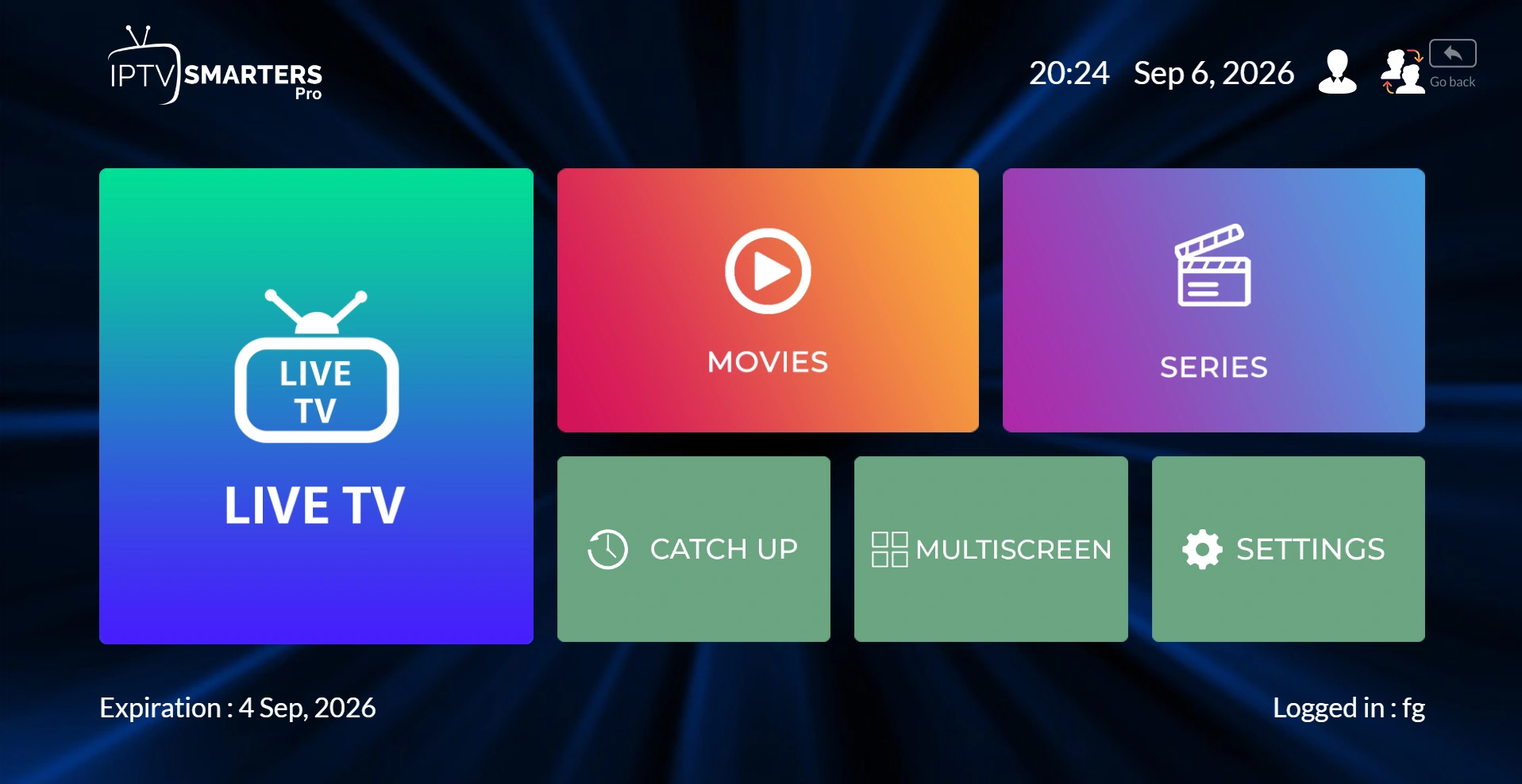
For a full walkthrough with every screen, read our IPTV Smarters Pro guide. If you are using a Smart TV, see our IPTV Smart TV setup guide, and for other apps our IPTV player guide.
Frequently Asked Questions
Why does IPTV Smarters say failed to authorize?
The app could not verify your login with your provider’s server. The most common causes are a typo in the username, password or server URL, an expired plan, too many connected devices, or a server that is down.
Is the failed to authorize IPTV Smarters error caused by the app?
Rarely. IPTV Smarters is only a player. In most cases the problem is the login details, the subscription status or the provider’s server. Updating the app and clearing its cache helps in the few cases where the app is the cause.
Can a VPN fix failed to authorize?
Sometimes. If your login works on mobile data but not on your home Wi-Fi, your network may be blocking the server, and a different network or a VPN can help. If the details are wrong or the plan has expired, a VPN will not change anything.
How long does it take to fix?
Most cases are solved in a few minutes by retyping the details or closing other devices. Server problems depend on your provider and can take longer.
How can I test a more stable IPTV service?
Request the IPTVService4K free 24-hour trial, log in with IPTV Smarters and test the channels on your own device before you choose a plan.
Final Thoughts
The failed to authorize IPTV Smarters error looks alarming, but it is usually a small detail: a typo, a missing port, an expired plan or one device too many. Work through the fixes above and you will be watching again in minutes. If the error keeps coming back, the problem is likely your provider. Compare our IPTV service plans or try IPTVService4K free for 24 hours.
Tired of login errors with your current provider? Our IPTV service gives you a stable login, 24/7 support and a free 24-hour trial.